Deploy Amazon WorkSpaces
Create a WorkSpace
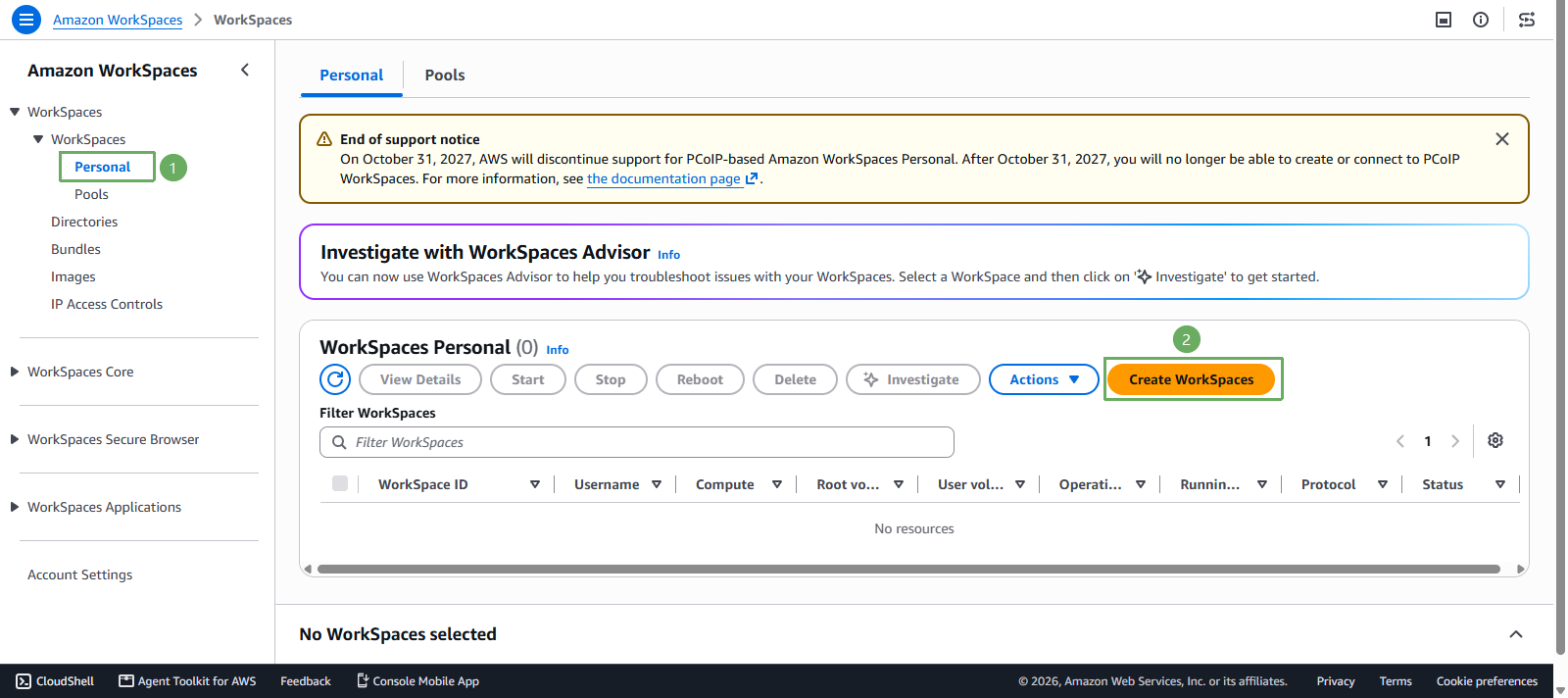
- In the left menu, expand the WorkSpaces group => choose Personal
- This page has 2 tabs: Personal and Pools. This lab uses Personal (each user gets their own desktop, and data persists between sign-ins).
- The WorkSpaces Personal (0) table is empty because we have not created any WorkSpace yet
- Click the orange Create WorkSpaces button at the right of the table
Step 1 - Onboarding (optional)
- This step only lets AWS recommend a configuration, you can skip it. There are 2 options:
- Recommend WorkSpace options to me based on my use case: there are 2 questions, What will your users use the WorkSpace for? and What operating system do your users need? => AWS will recommend a suitable configuration
- I know what WorkSpace options I need for my use case: skip the recommendation and configure everything yourself in the next step
- In this lab, choose Recommend WorkSpace options to me based on my use case and fill in:
- What will your users use the WorkSpace for?: choose General - Web browsing
- What operating system do your users need?: choose Windows
- Click Next
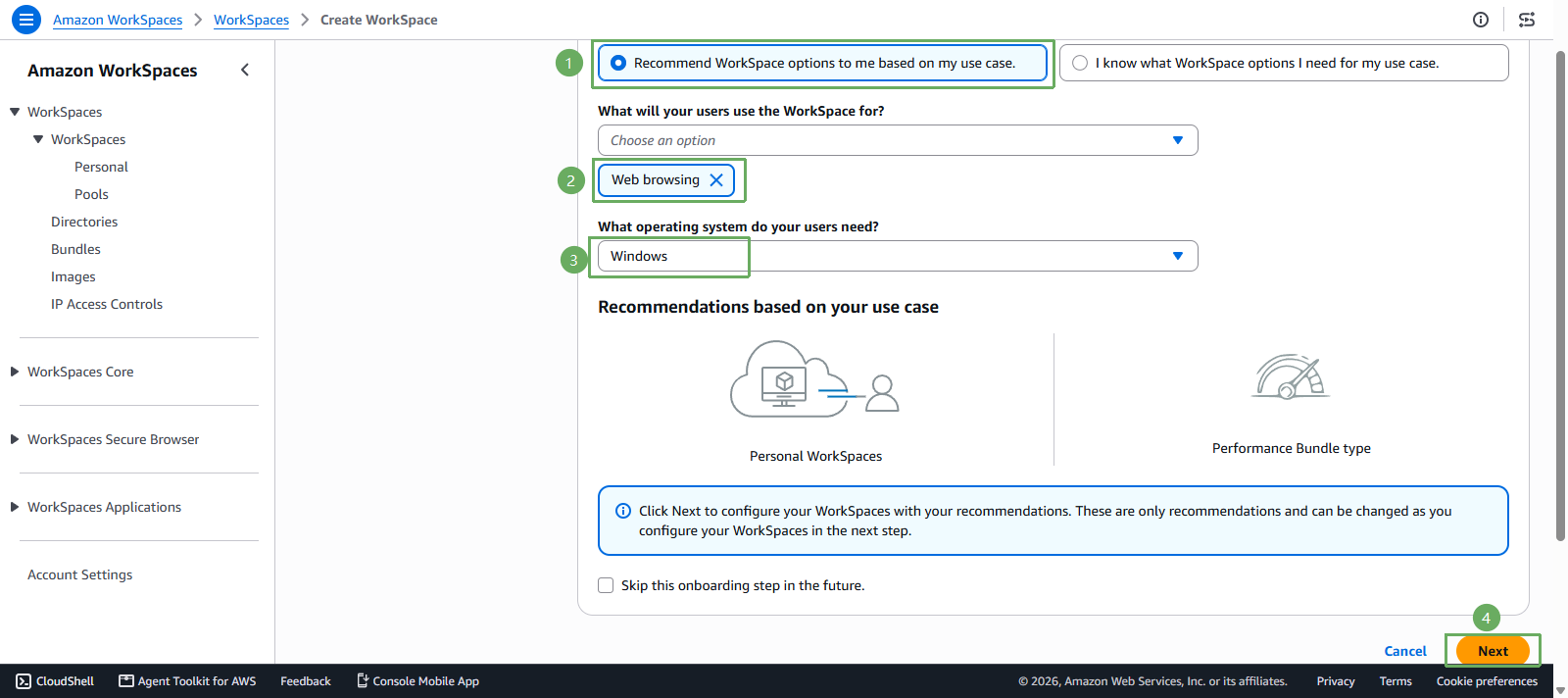
What AWS recommends in this step is only a suggestion, you can still change everything in Step 2. If you do not want to see this step next time, select Skip this onboarding step in the future. The WorkSpace summary panel at the bottom of the page summarizes your choices throughout the wizard.
Step 2 - Configure WorkSpace
WorkSpace type: choose Personal - this card carries the Recommended label
- Personal: each user is assigned their own persistent WorkSpace, and data persists between sign-ins. This is the option used in this lab.
- Pools: this card is greyed out and cannot be selected, because Amazon WorkSpaces Pools is no longer available to new customers as of 07/30/2026
Bundle: choose the bundle source - a bundle is the hardware configuration plus the operating system and the pre-installed applications
- Use a WorkSpaces bundle: choose an existing AWS managed bundle. This lab uses this option.
- Use your own custom or BYOL bundle: use a bundle you built from your own image
In the Bundles dropdown, choose Standard with Windows 10 (Server 2022 based). The bundle description line shows the important details:
- Protocol: WSP - the streaming protocol, see the note below
- 2 vCPU, 4.0 GB Memory, 80 GB Root volume, 50 GB User volume
- Owner: MANAGED, Applications: Mozilla Firefox, Language: English
- The Free tier eligible label on the right
- Click Bundle details to see the details of the selected bundle, or Compare all bundles to compare every bundle
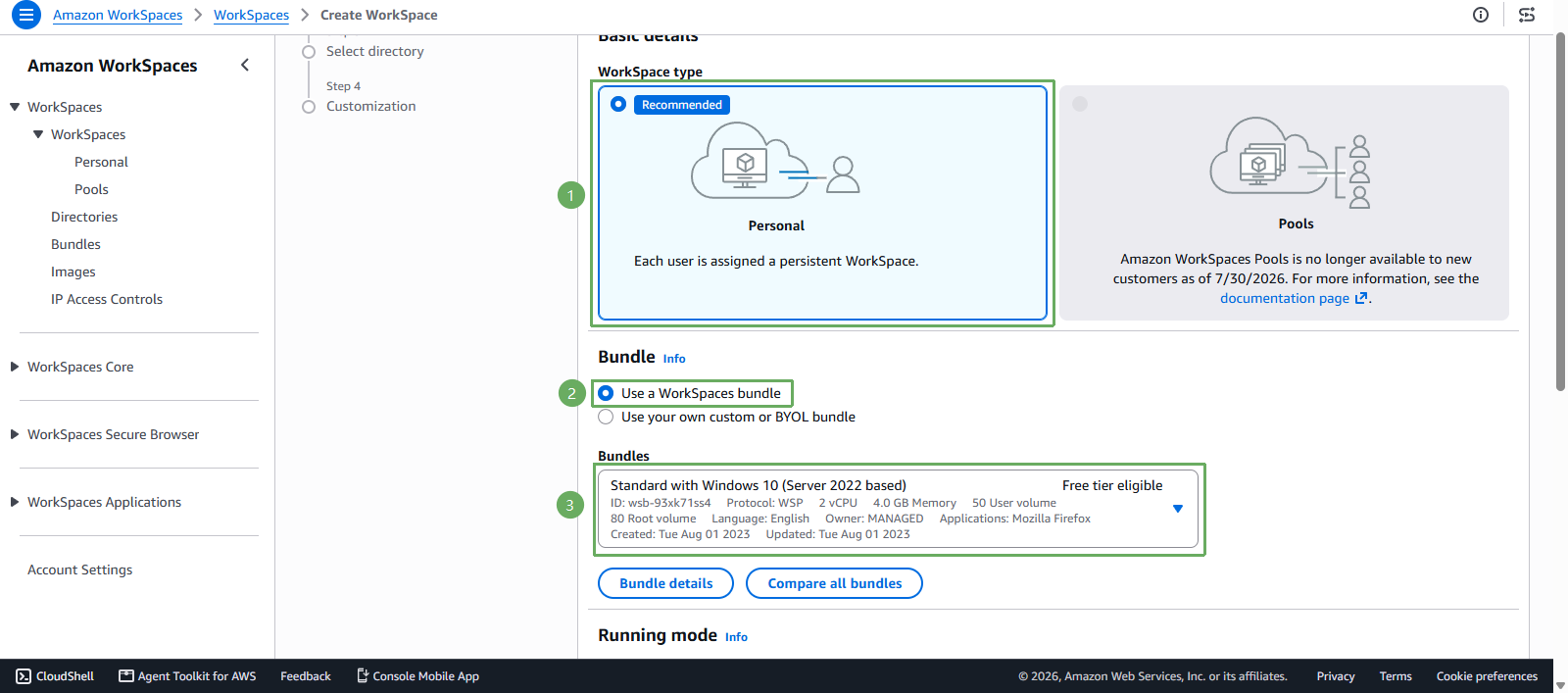
The Standard with Windows 10 bundle only ships with Mozilla Firefox, it does not include Microsoft Office. If you want Office as in the original workshop instructions, you need to choose a Plus bundle - that type ships with Microsoft Office Professional and Trend Micro Worry-Free Business Security, but it is not part of the Free tier and adds a monthly license fee. For lab purposes, keep the bundle with the Free tier eligible label to save cost; if you need Office, you can still install it later with the Manage applications feature.
Pay attention to the Protocol field of the bundle. The bundle in this example uses WSP (now called DCV) - this is the option you should use. Avoid PCoIP bundles, because the console already shows an End of support notice: as of 10/31/2027 AWS discontinues support for WorkSpaces Personal on PCoIP, and after that date you can no longer create or connect to PCoIP WorkSpaces. Read more at Protocols for WorkSpaces Personal.
- Running mode: decides how the WorkSpace is available and how you are billed
- Always on: billed monthly, instant access to an always running WorkSpace. Suitable for users who treat the WorkSpace as their full time primary desktop.
- Auto stop: billed by the hour, the WorkSpace starts automatically when you sign in and stops after a period of disconnection, while the state of apps and data is preserved
- This lab chooses Auto stop to save cost, for example an office employee who only works 8 hours a day
- Tags (optional): add key - value pairs to categorize resources, for example
project,owner,environment. Then click Next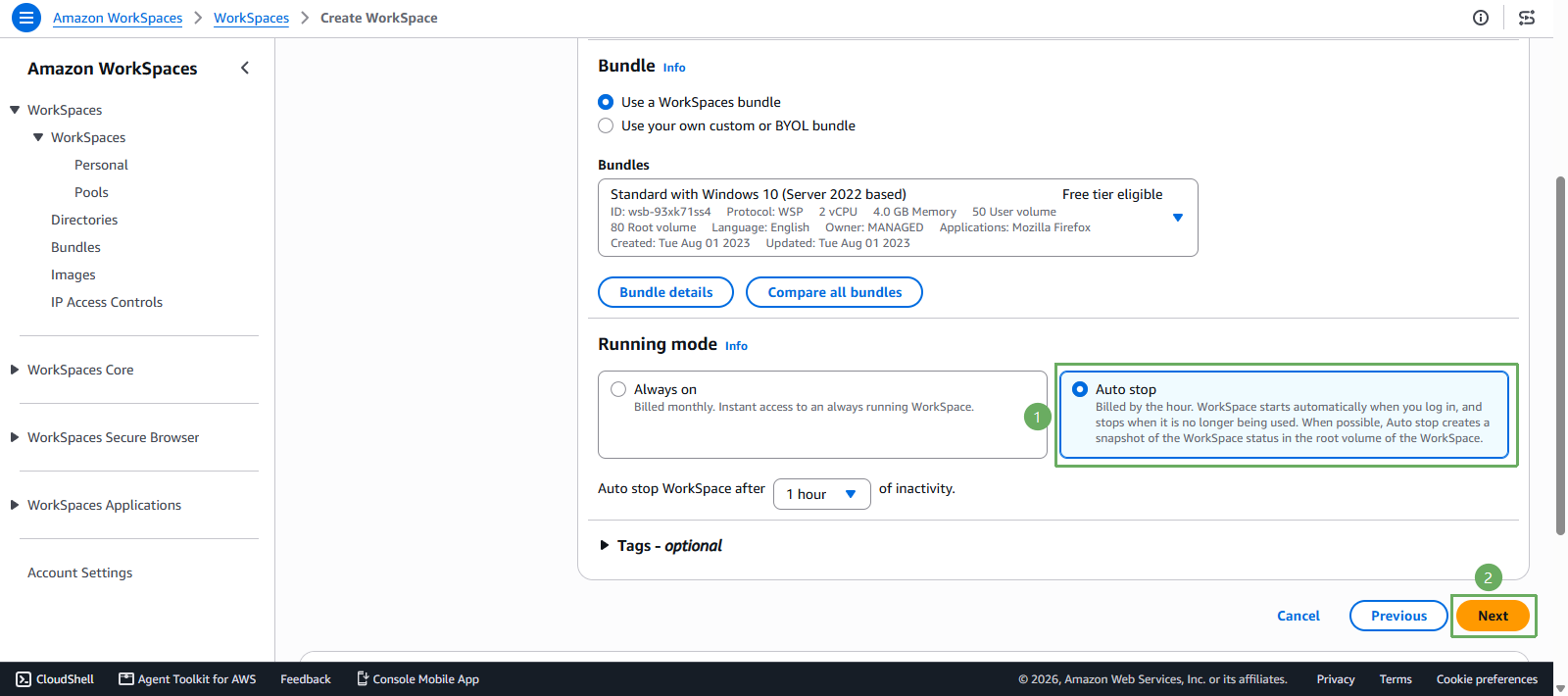
Step 3 - Select directory
- In the directory selection step, choose the directory you registered in section 3.1
- If the directory does not appear, it means it is not registered yet, go back to section 3.1
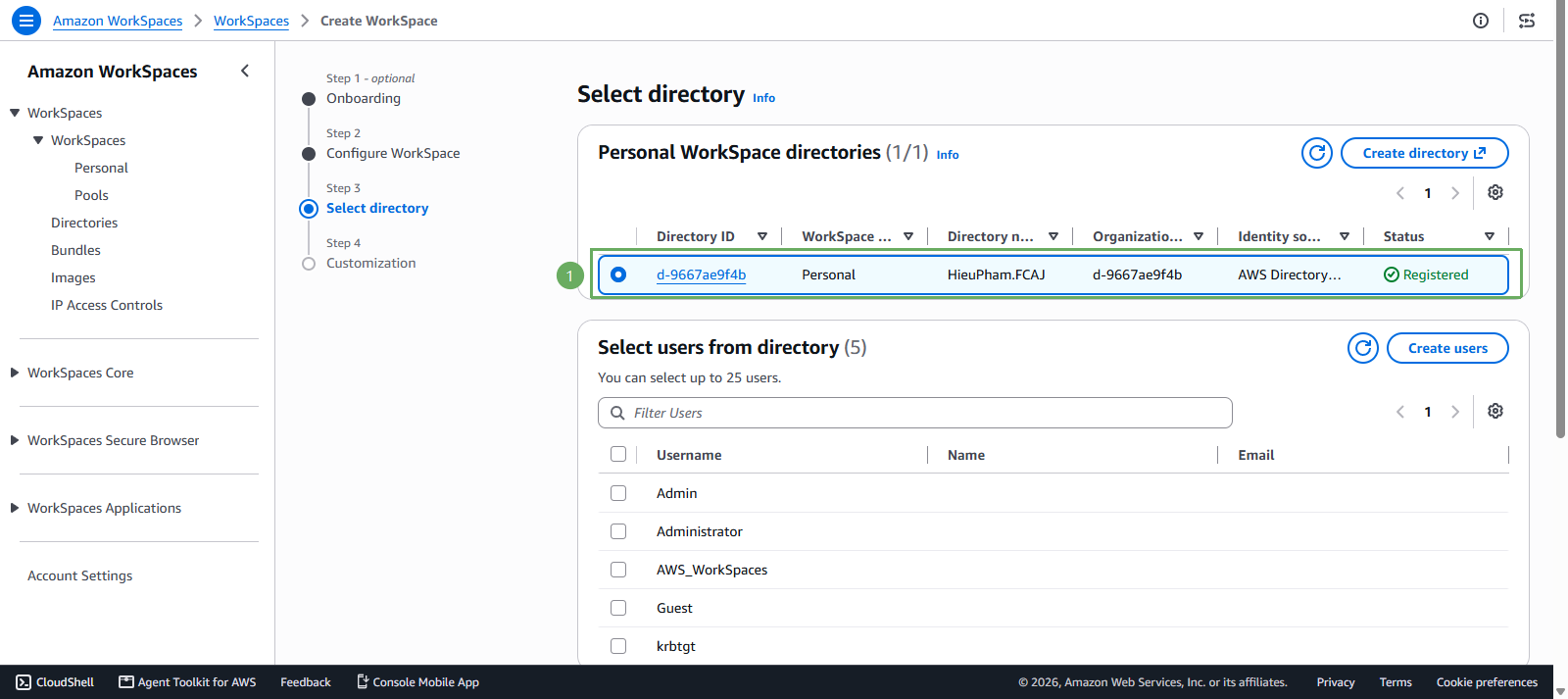
- If the directory does not appear, it means it is not registered yet, go back to section 3.1
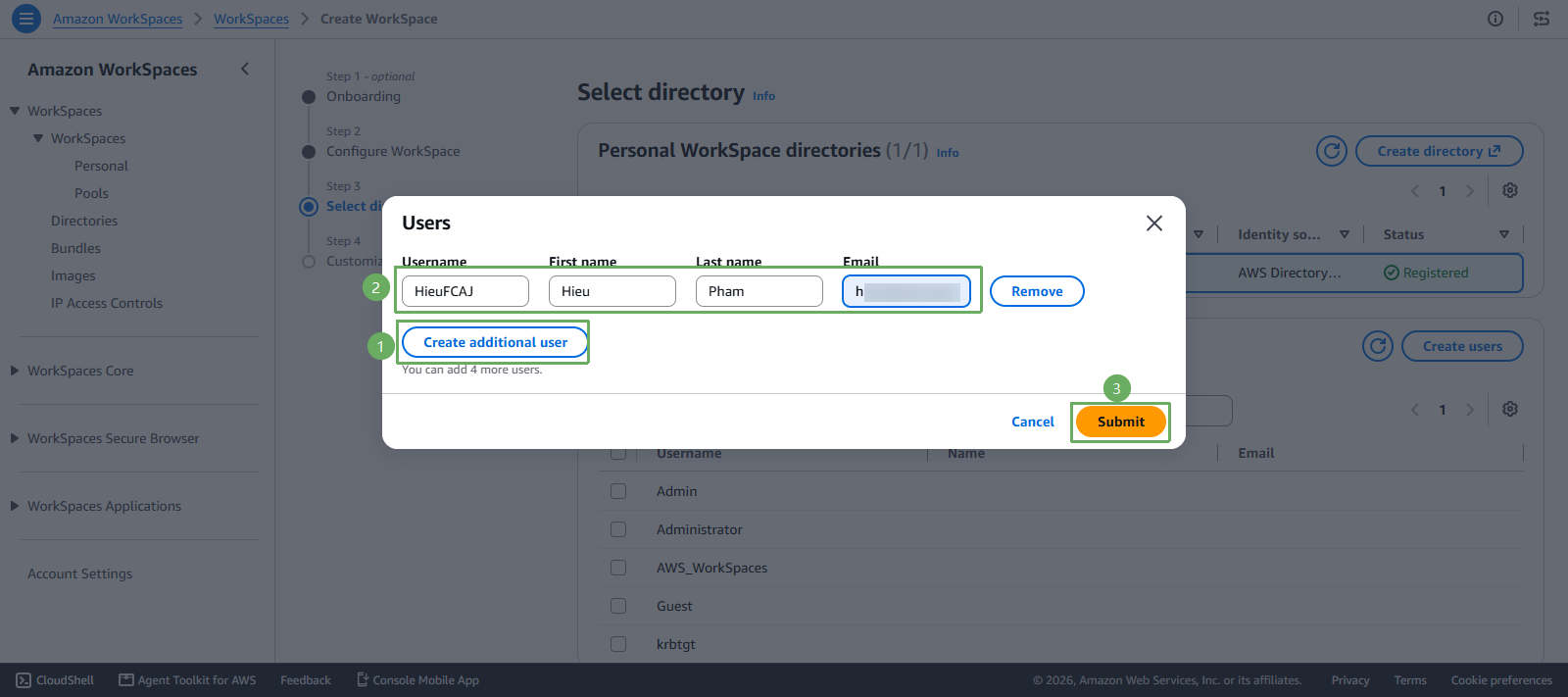
- Choose the users who will be provisioned a WorkSpace. If you do not have any user yet, click Create users and fill in:
- Username, First name, Last name, Email
- Click Create additional user to add more users
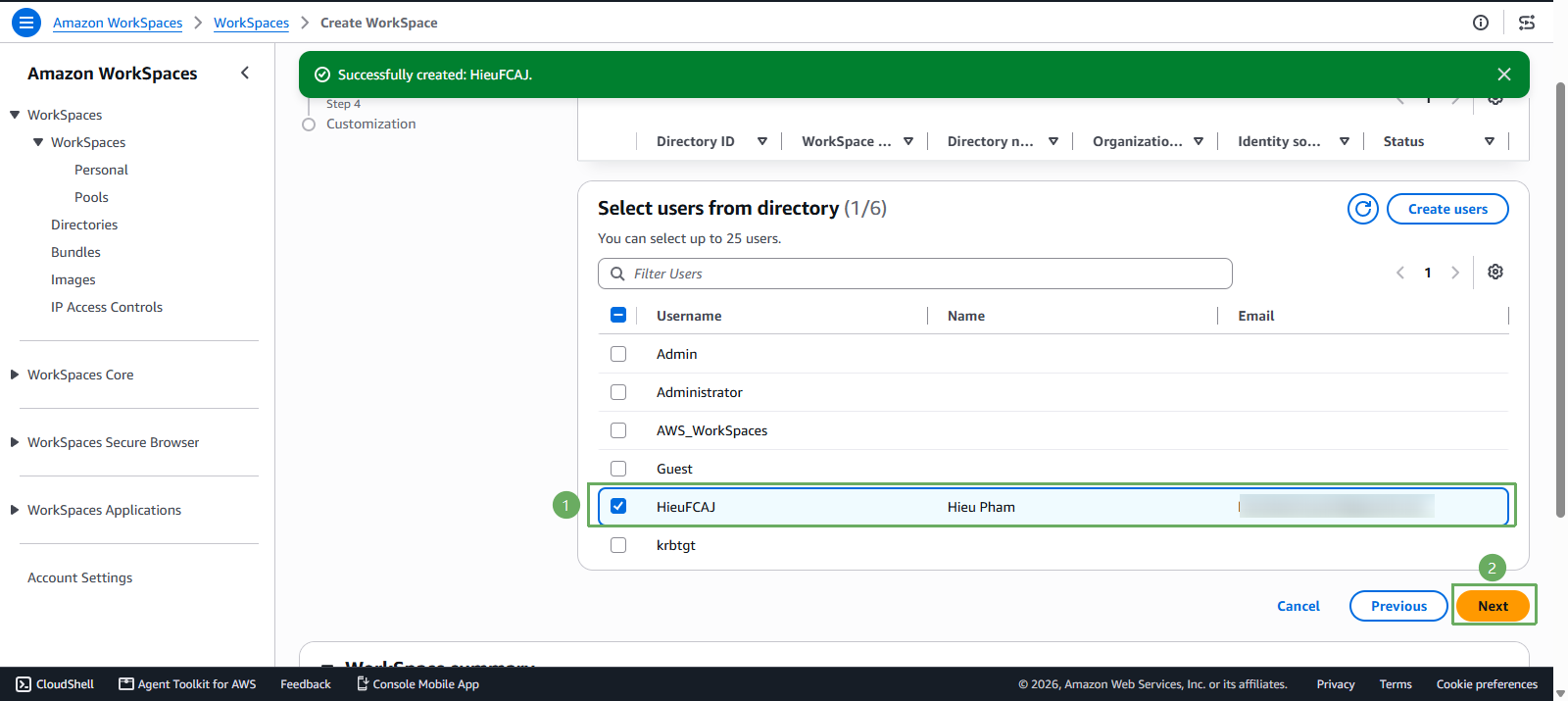
Step 4 - Customization (optional)
- Deeper customization per user
- Encryption: enable encryption for the root volume, the user volume, or both
- Nested virtualization: allows running hypervisors such as Hyper-V and KVM inside the WorkSpace to use Docker Desktop and WSL2. This feature is only available on non-GPU bundles using the DCV protocol with a supported operating system.
- You can also set a specific bundle and user volume size for each user
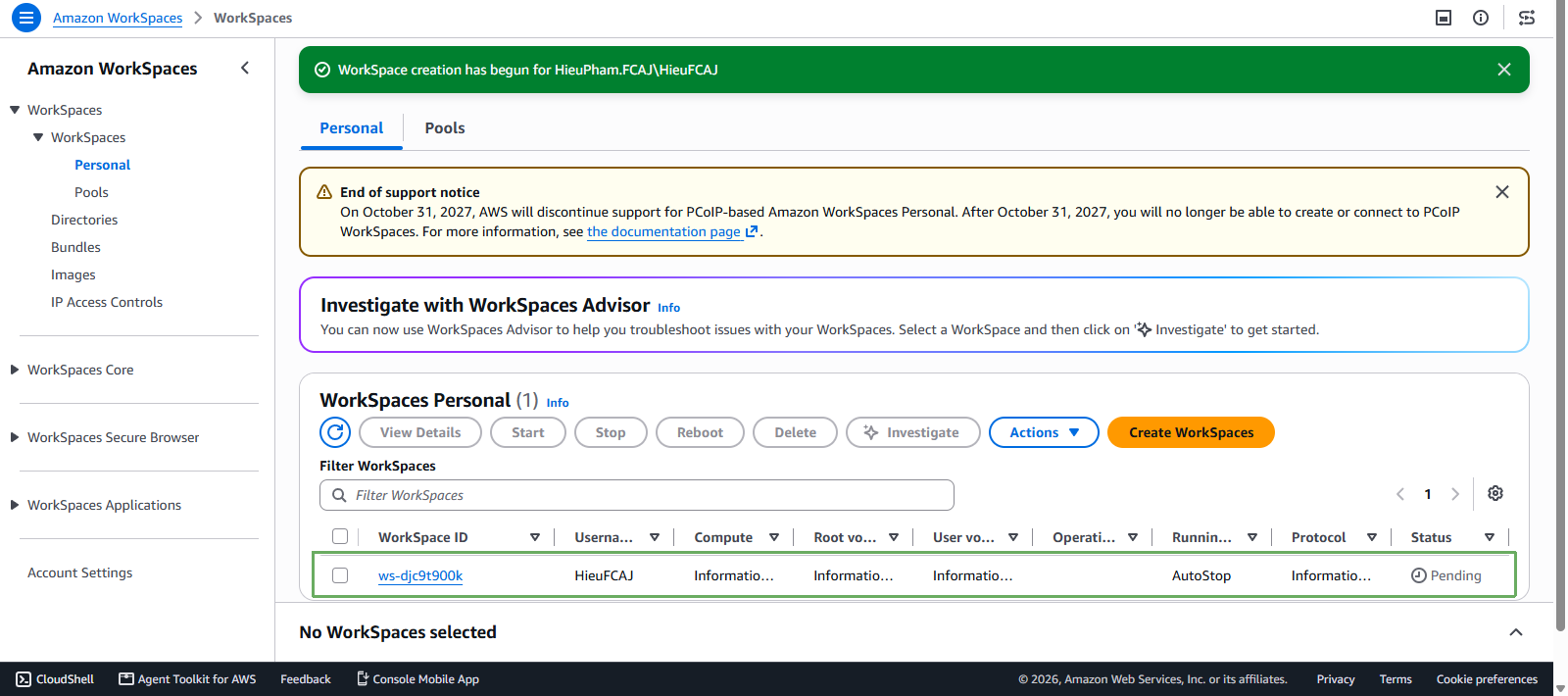
- Click Create WorkSpaces. The initial WorkSpace status is
PENDING, it takes about 20 minutes to becomeAVAILABLE, and an invitation email is sent to the user’s email address.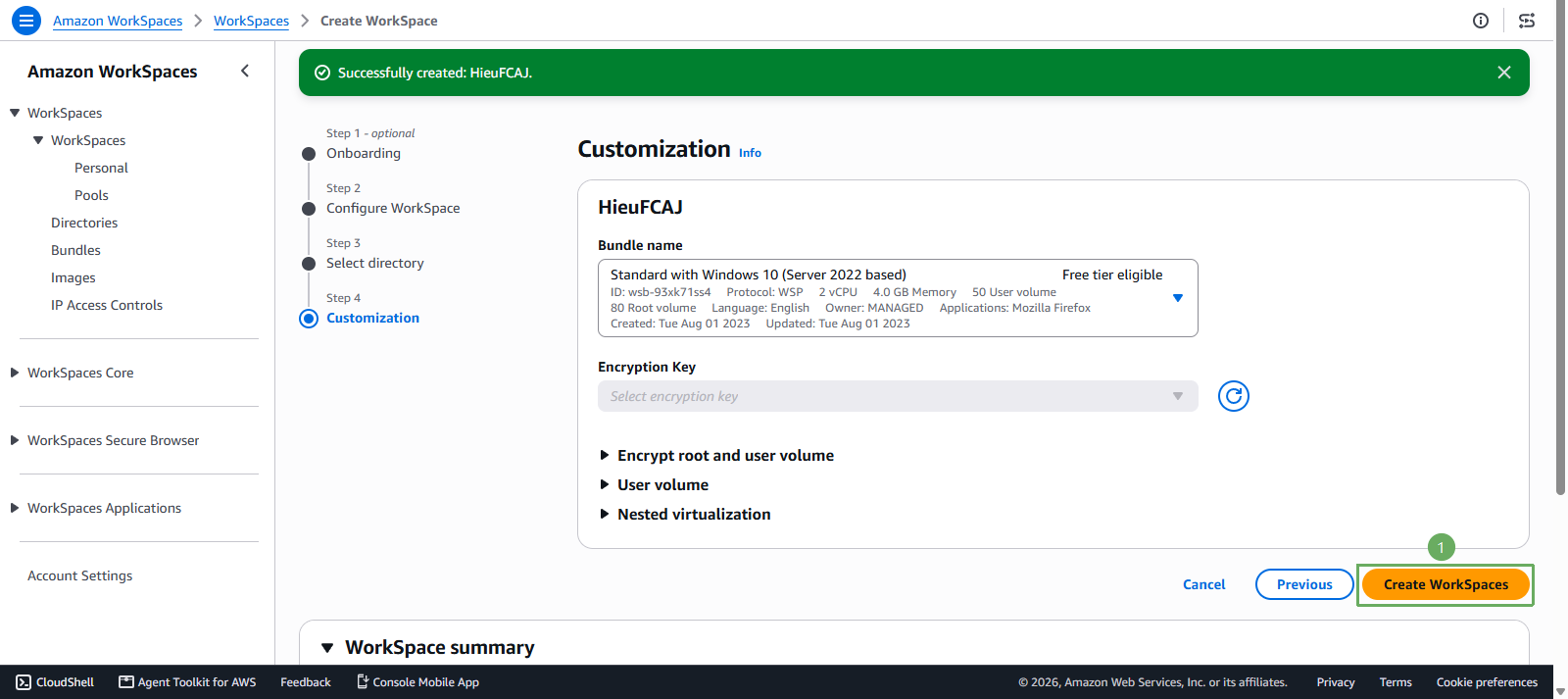
Activate the user account on AD-Manager
- With AWS Managed Microsoft AD, WorkSpaces sends an invitation email so that the user can set their own password.
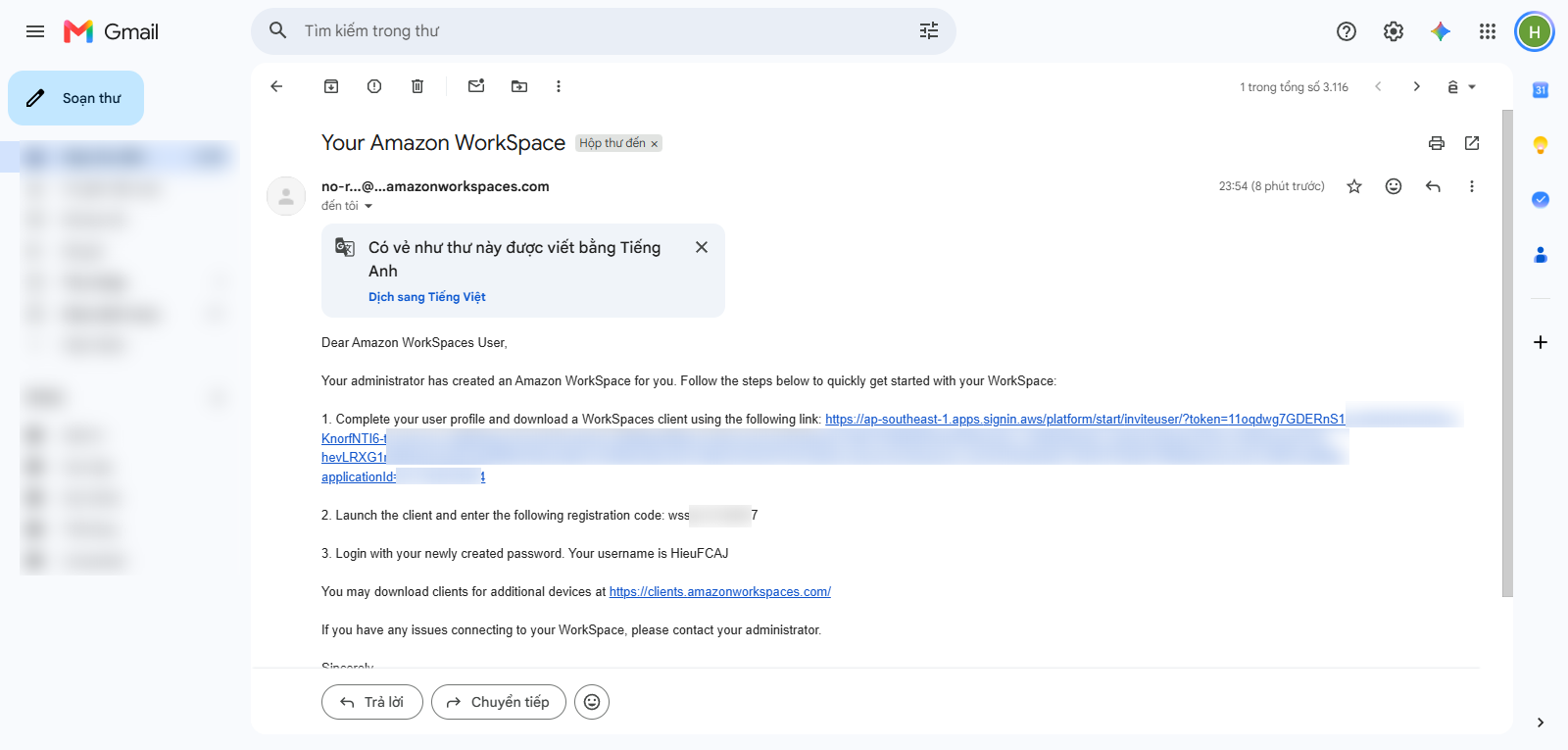
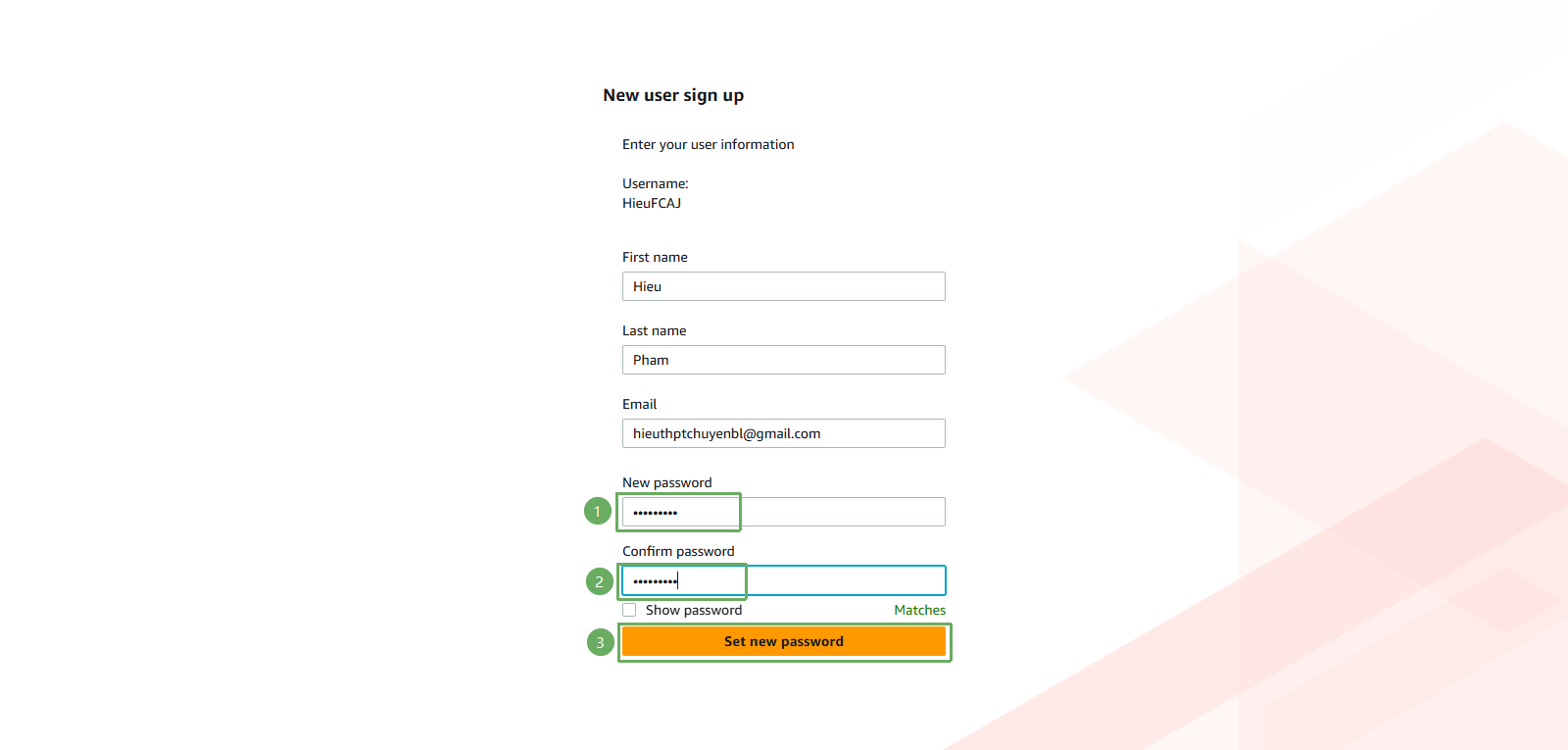
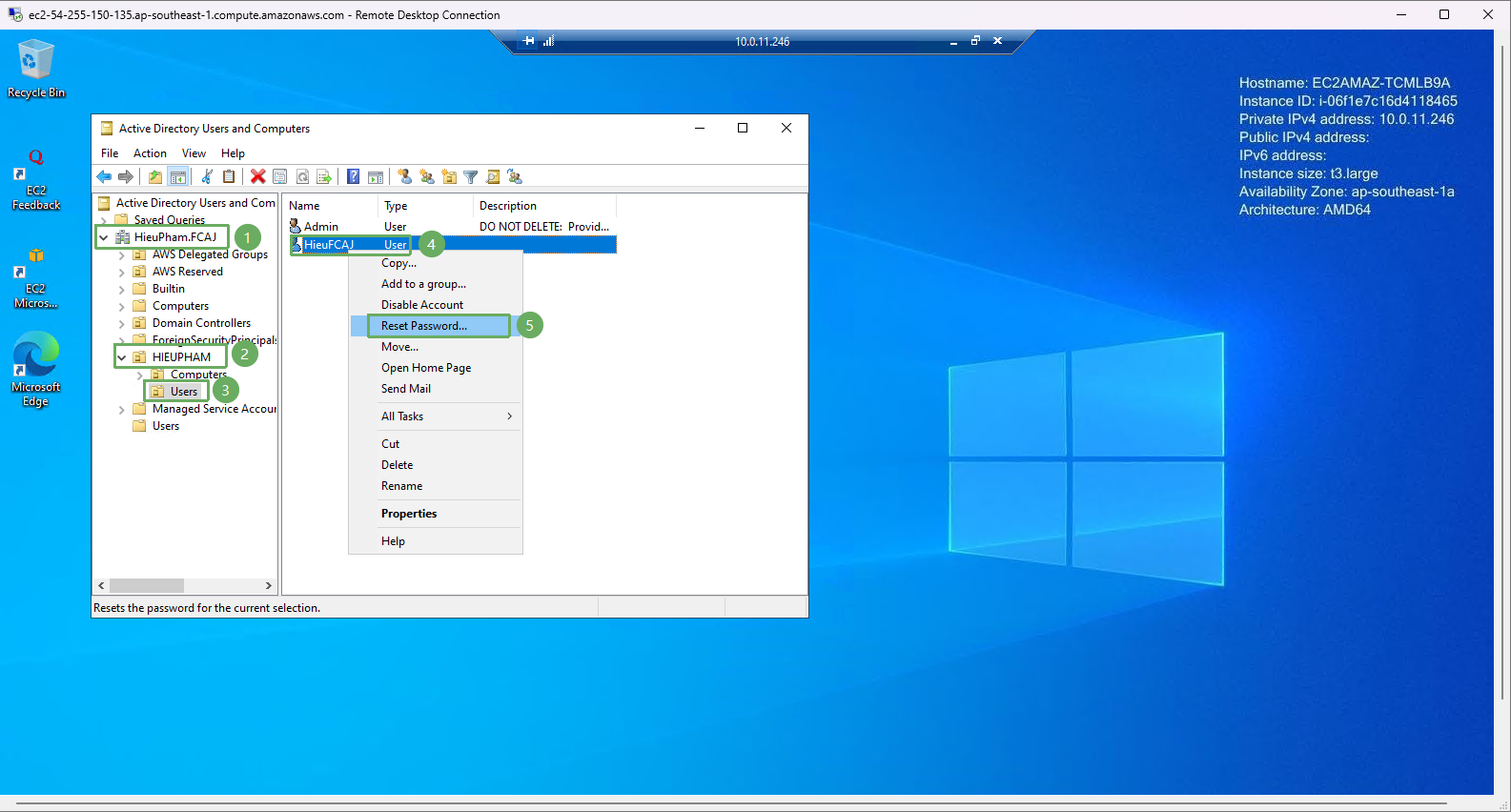
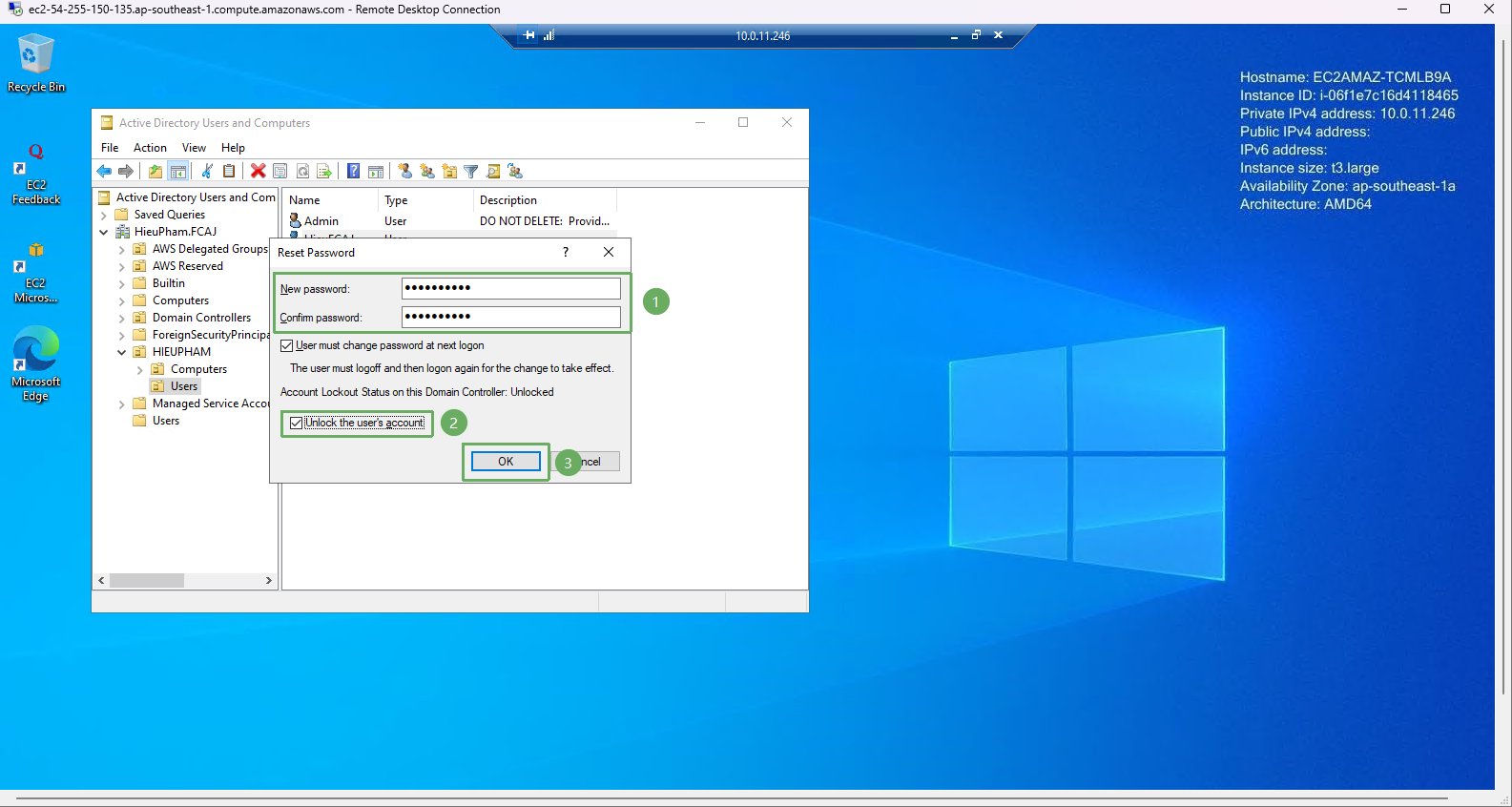
In a lab environment the email is usually not a real address, so we will set the password directly on the EC2 AD-Manager. Do the same for every account:
- Reset user password: right click the selected user => Reset Password
- Enable the user account
Create a user account from Active Directory Users and Computers
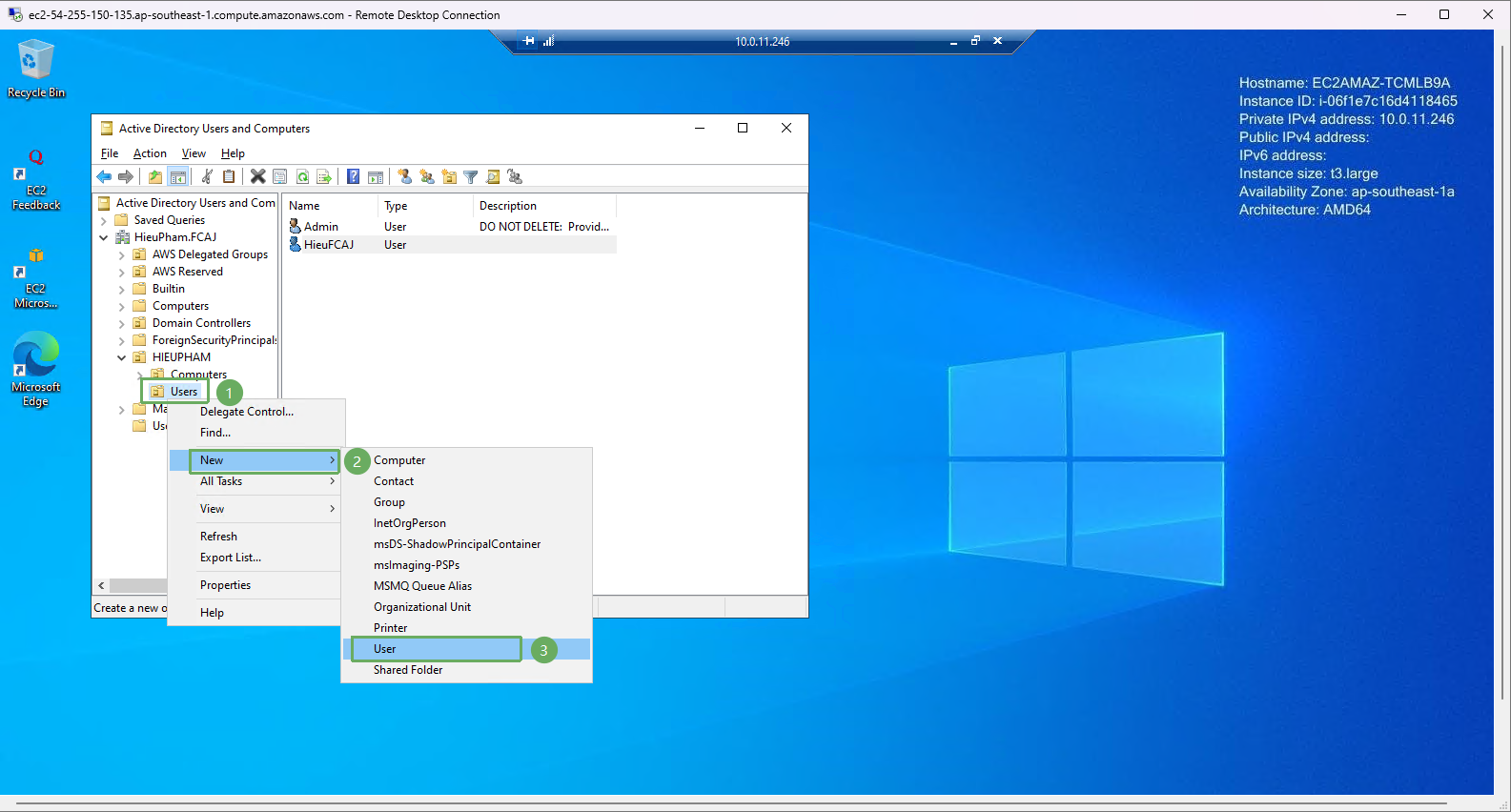
- The second way is to create the user directly on the AD-Manager using Active Directory Users and Computers:
- Right click on users => new => user
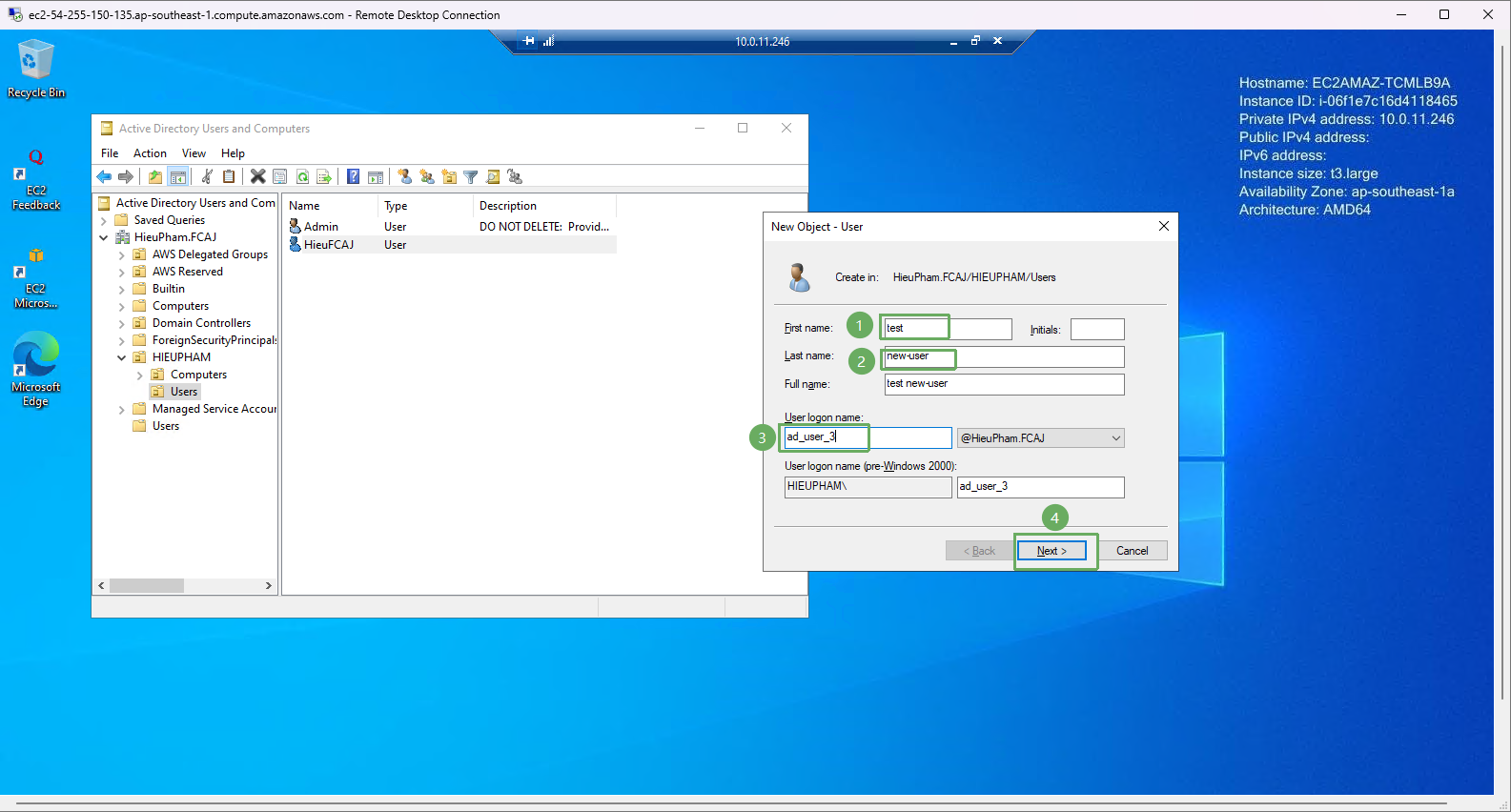
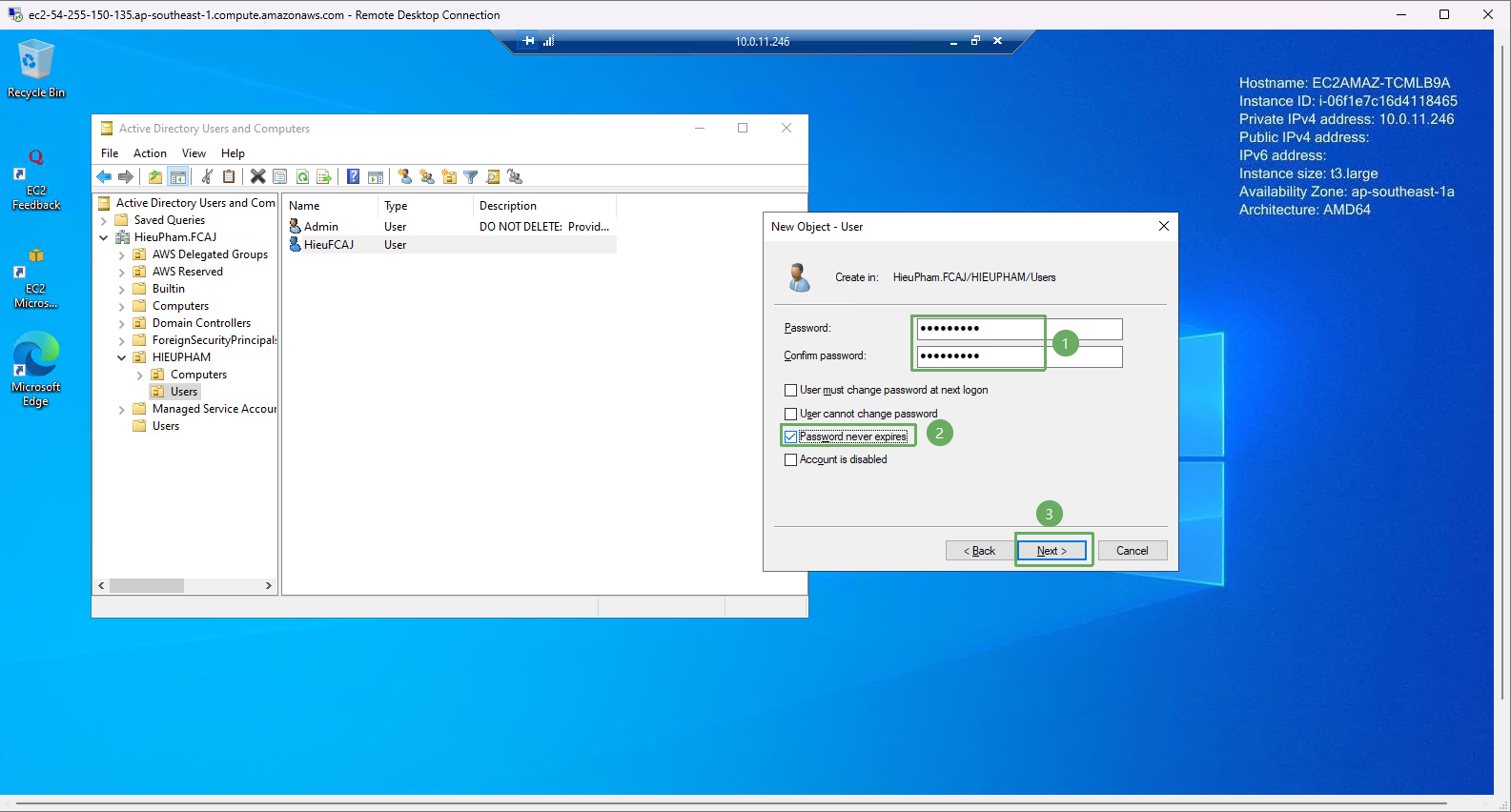
- Fill in all the required information, including the password
- Clear the User must change password at next log-on option
- Select Password never expires
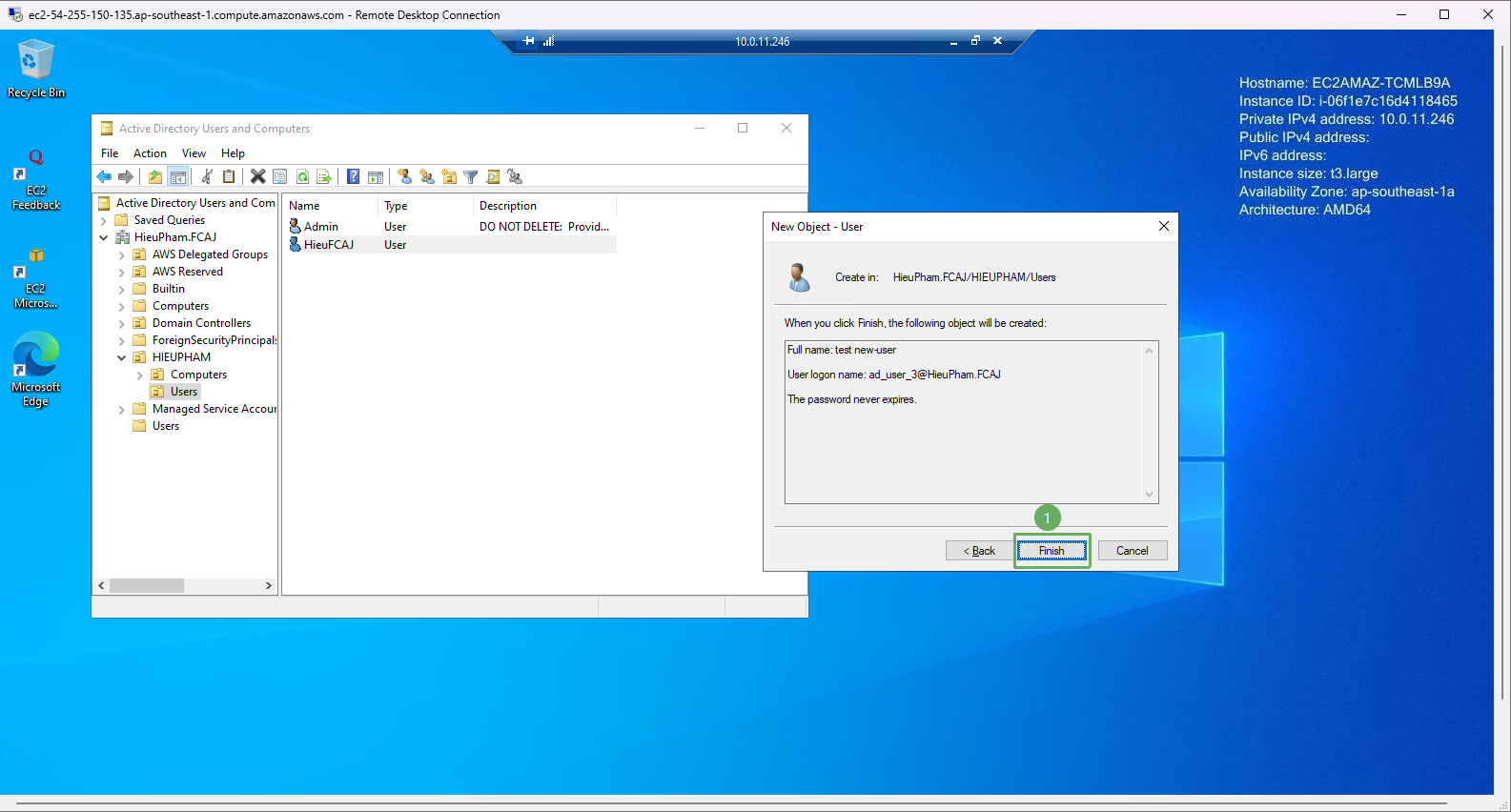
- Finish