Clean Up Services
The clean up order matters. You must delete the WorkSpaces first, then Deregister the Directory, and only after that delete the Directory and the network infrastructure. Doing it in the wrong order leads to errors: the Directory cannot be deleted while it is still registered with WorkSpaces, and a subnet or VPC cannot be deleted while WorkSpaces or Domain Controllers still live inside it.
Step 1: Delete the WorkSpaces
- Go to the WorkSpaces Management Console
- In the left menu, expand the WorkSpaces group => choose Personal
- Select all existing WorkSpaces, choose Remove => confirm to delete
- Notice the WorkSpaces status changing to TERMINATING
- After about 5 minutes, reload the page to make sure all WorkSpaces are completely deleted
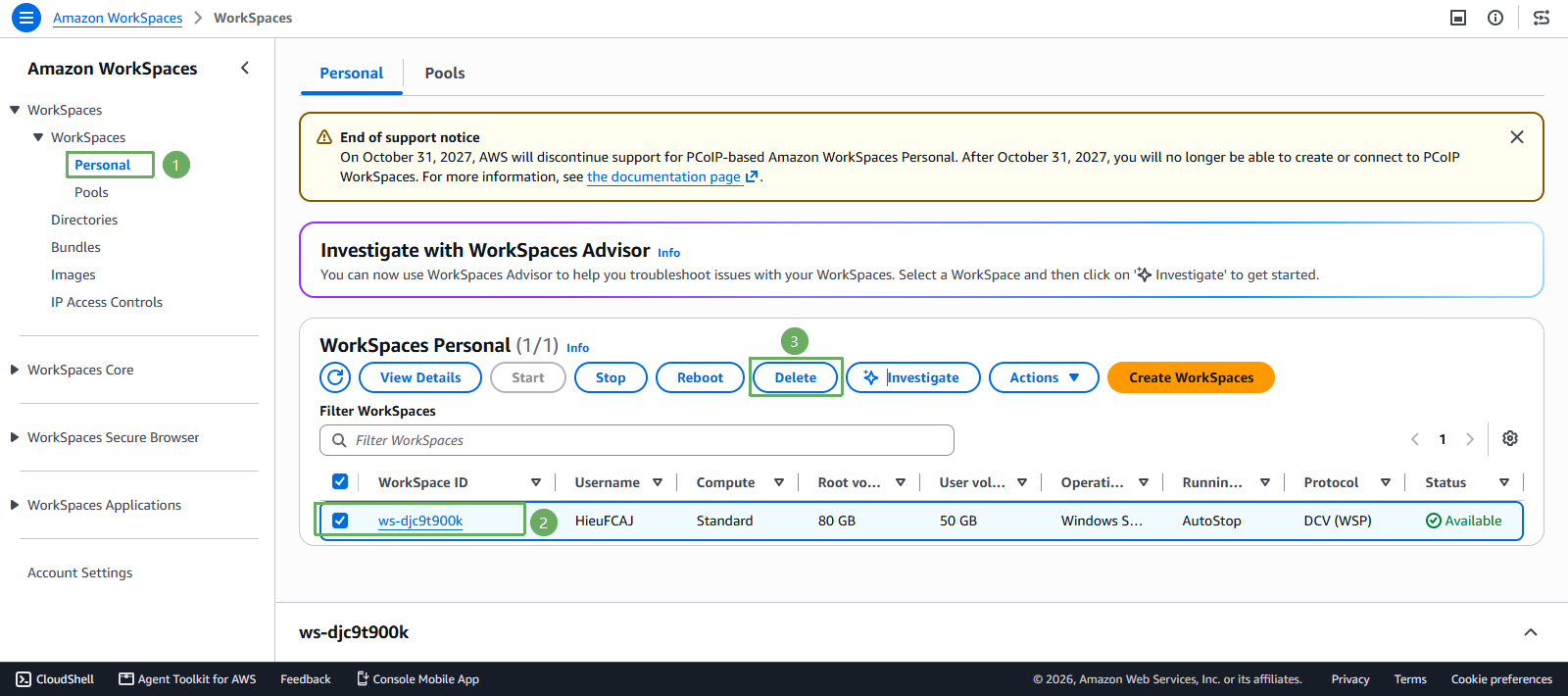
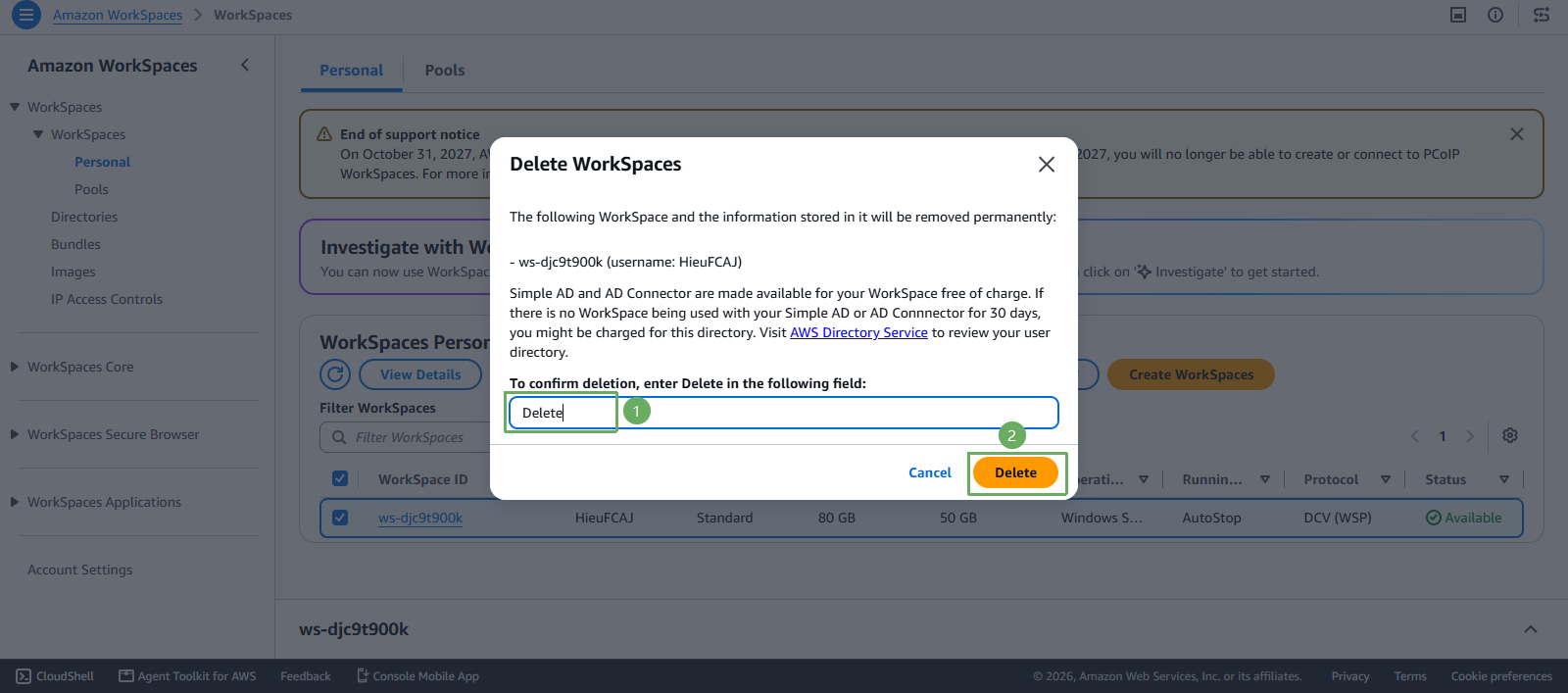
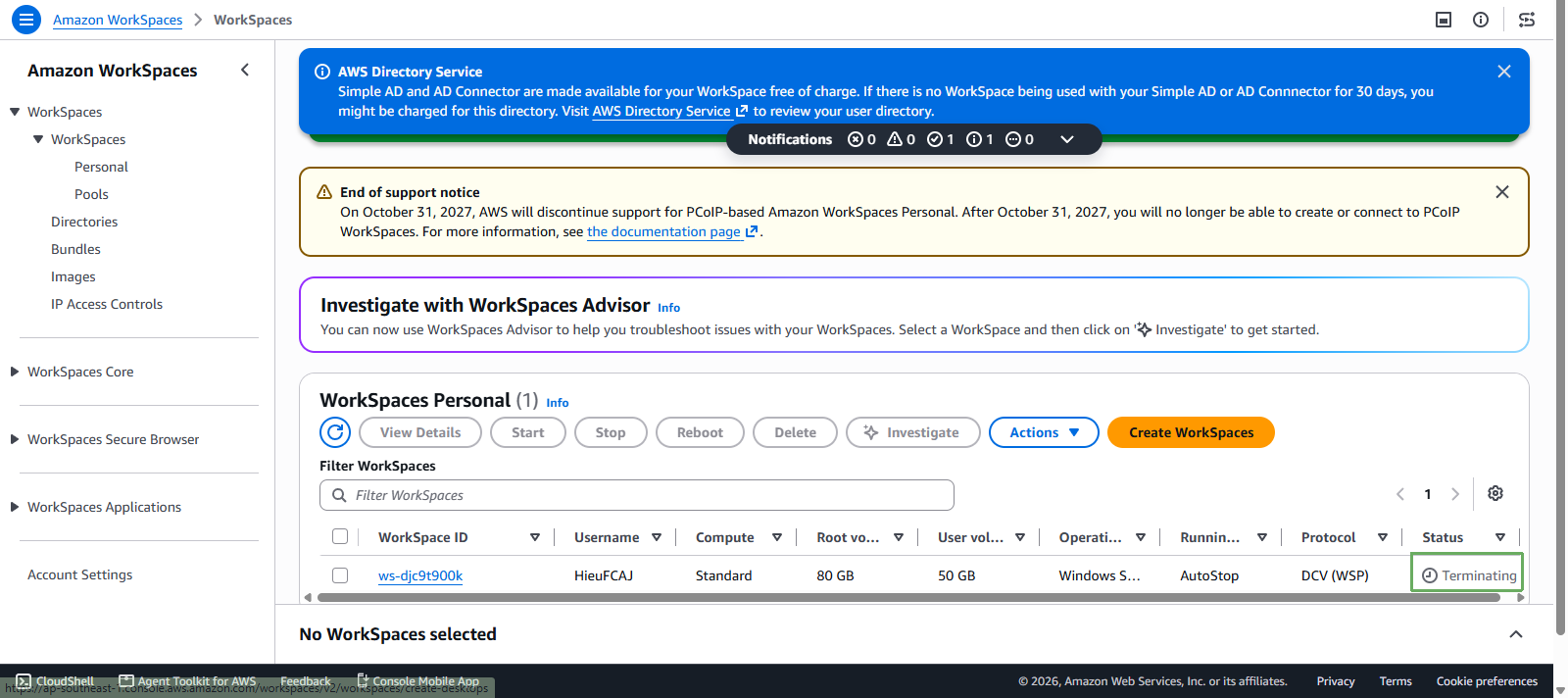
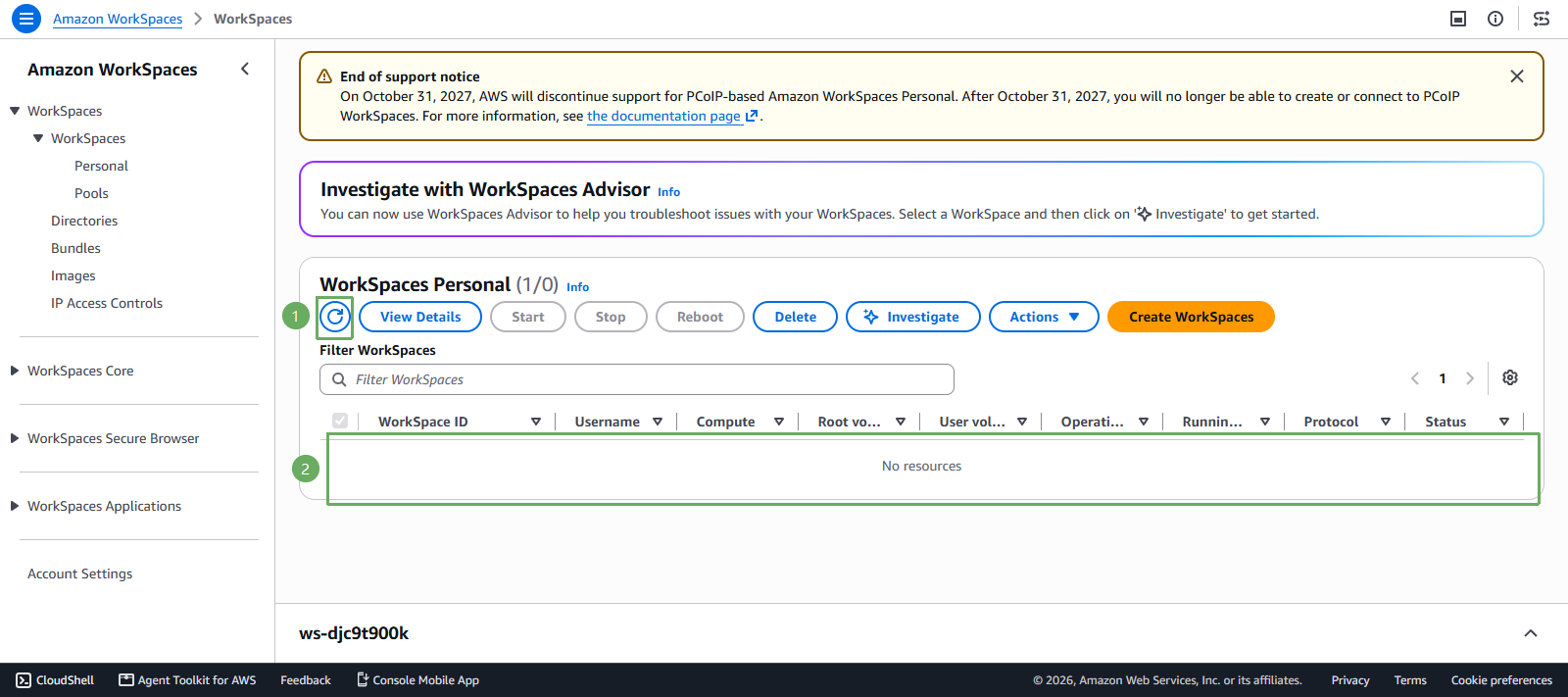
Each WorkSpace creates a network interface in the private subnet. If you move on to deleting the infrastructure while the WorkSpaces are not fully removed, the leftover network interfaces will block the deletion of the subnet and the VPC. Wait until the WorkSpaces list is completely empty.
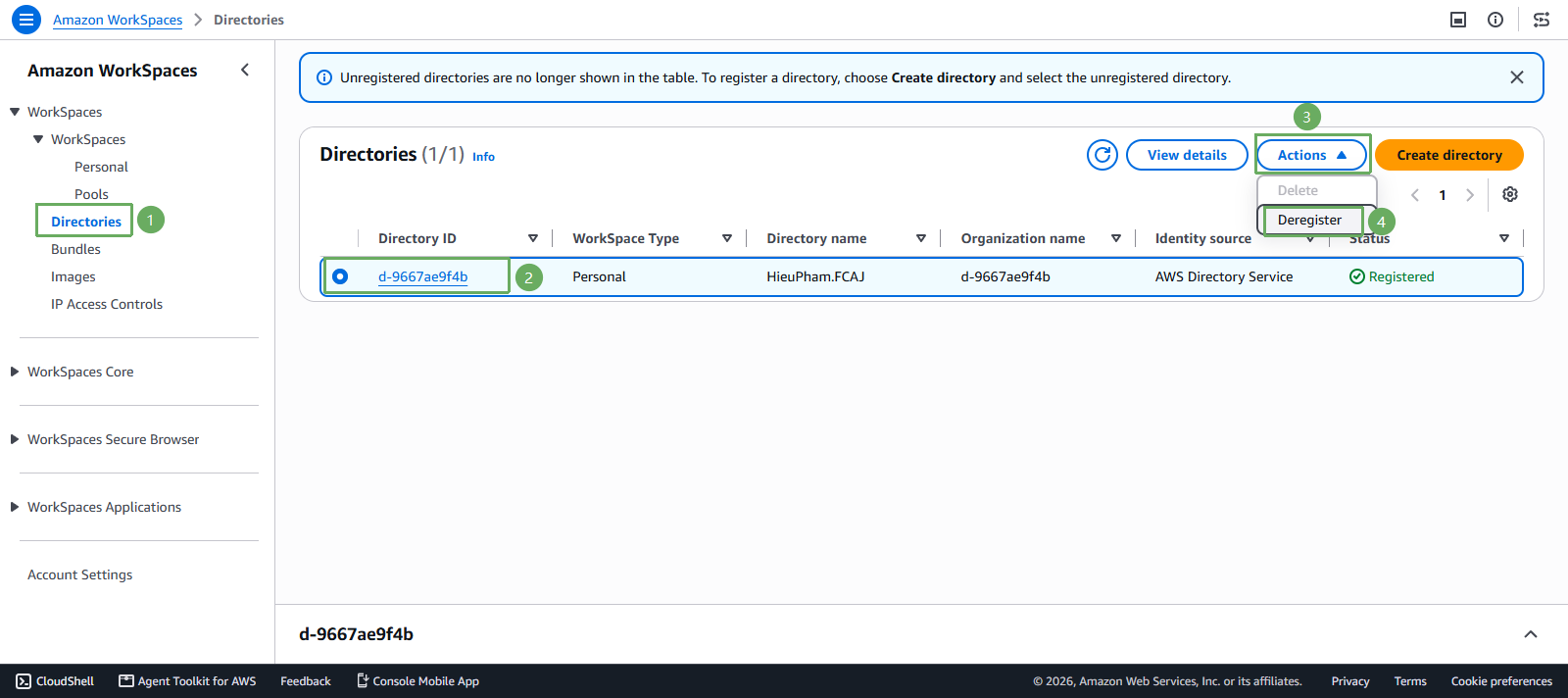
Step 2: Deregister the Directory
- In the left menu, choose Directories
- Select the directory used for this lab
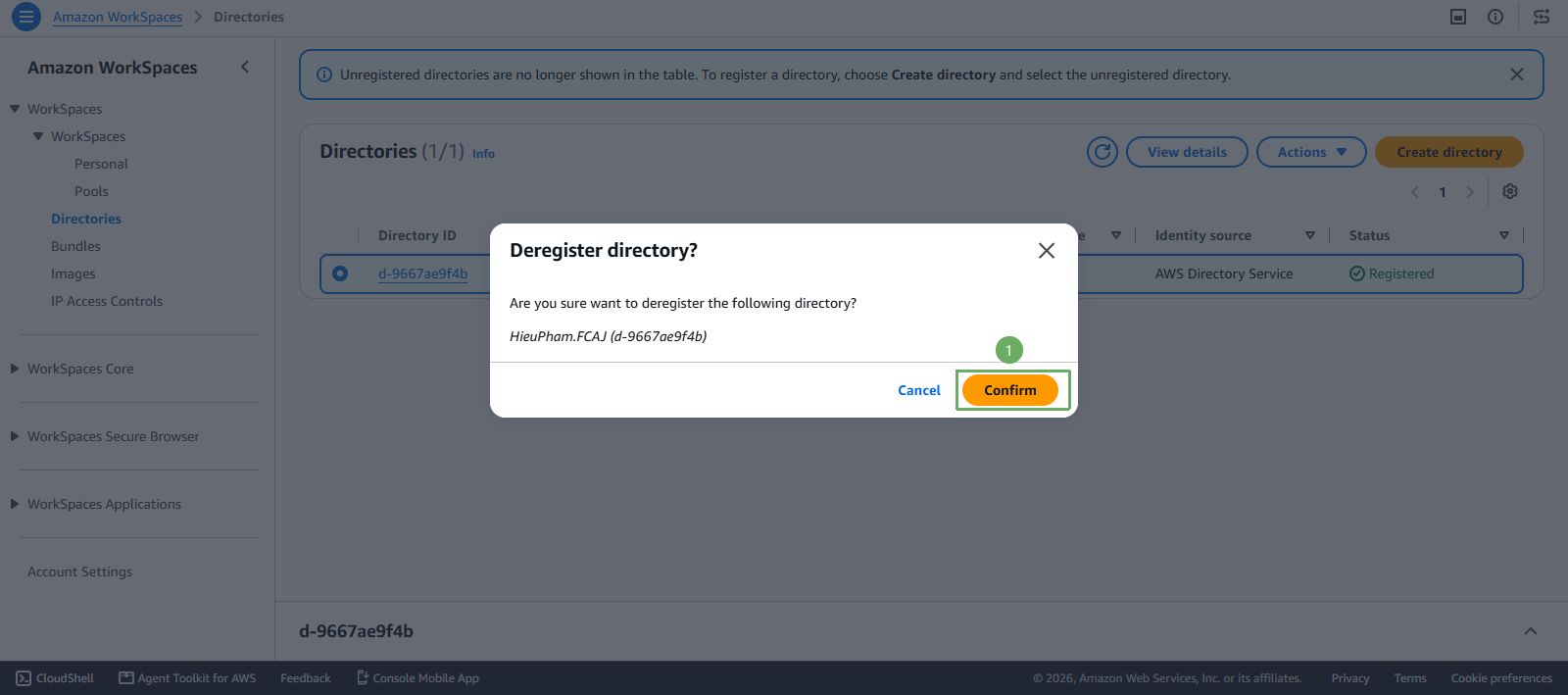
- Actions => Deregister => confirm with Confirm
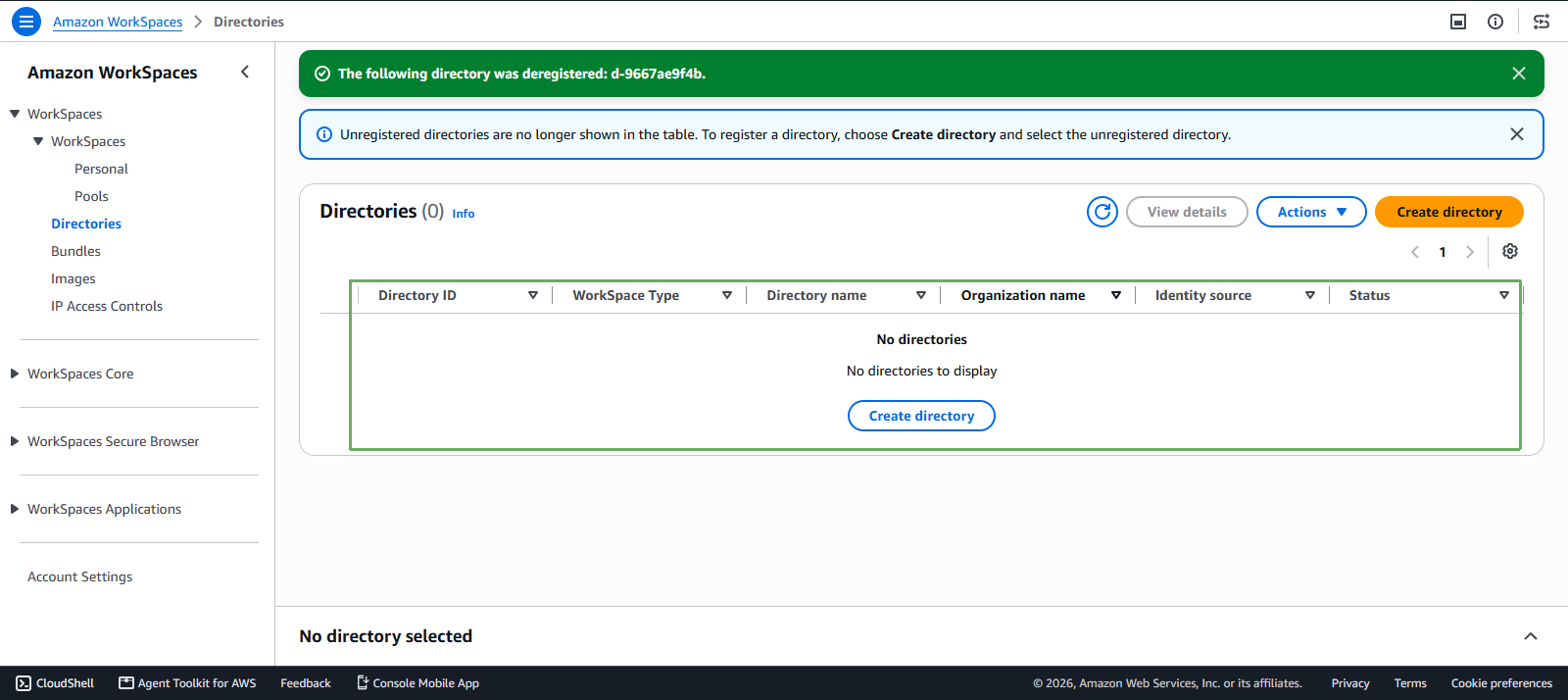
- After deregistration completes, the directory disappears from the WorkSpaces list
Step 3: Delete the infrastructure
If you built the infrastructure with CloudFormation in section 2, everything else is removed in a single action:
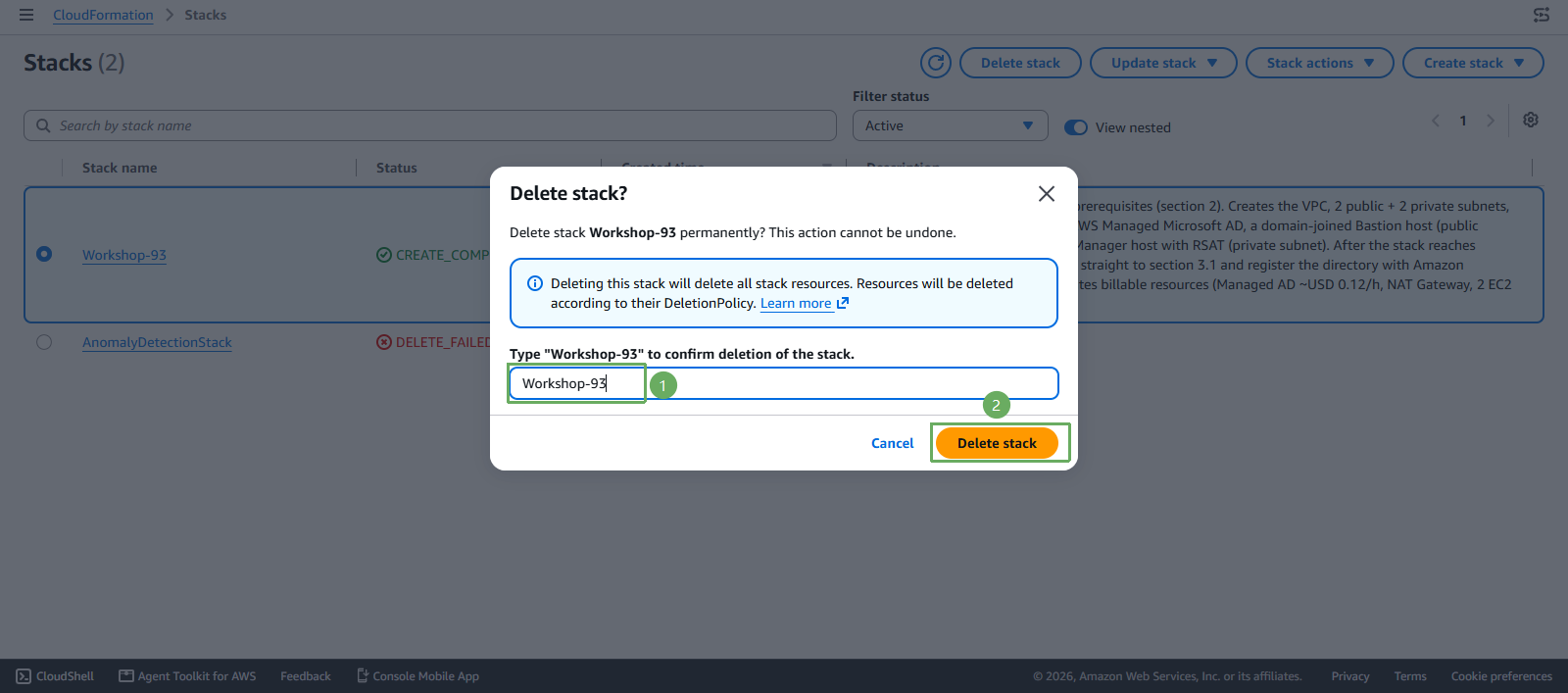
- Open the CloudFormation console => select the stack you created, for example
workspaces-workshop=> Delete => Delete stack- The stack deletes by itself: AWS Managed Microsoft AD, the 2 EC2 instances, the IAM Role, the Security Groups, the SSM Association, the DHCP Options Set, the NAT Gateway, the Elastic IP, the Internet Gateway, the Route Tables, the 4 Subnets and the VPC
- AWS Managed Microsoft AD takes quite a while to delete, so the stack may stay in
DELETE_IN_PROGRESSfor about 20 to 30 minutes - Wait until the stack disappears from the list, or reaches the
DELETE_COMPLETEstate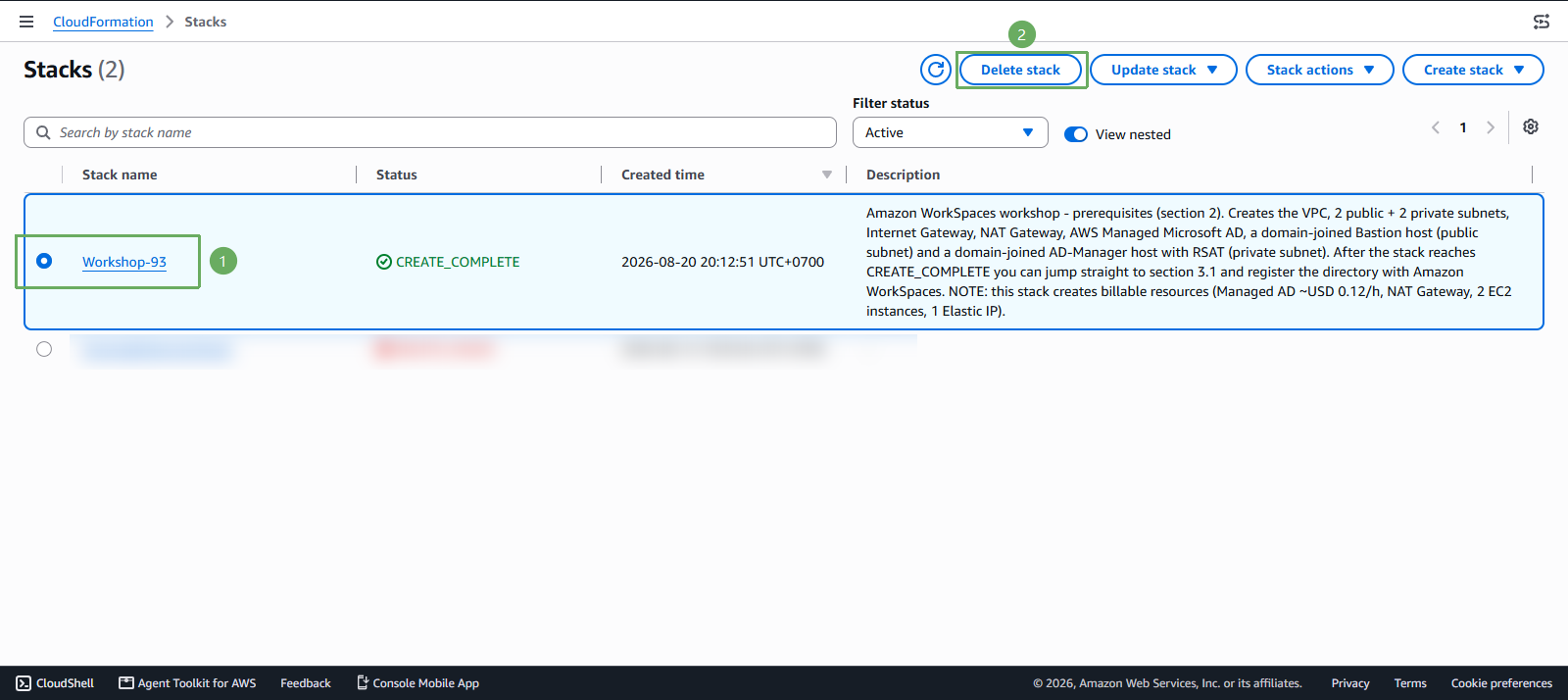
Step 4: Verify
- After the stack is deleted, quickly check the items that can keep charging you if left behind:
- EC2 => Elastic IPs: no address left in an unused state. An idle Elastic IP is still billed.
- VPC => NAT Gateways: no NAT Gateway left in the
Availablestate - Directory Service: no directory left
- WorkSpaces => Personal: the list is empty
- Remember to check the exact Region you worked in, other Regions will not show these resources
If you created the infrastructure manually instead of using CloudFormation, delete it in this exact order: delete the AWS Managed Directory Service => delete the 2 EC2 instances => delete the inbound and outbound rules of every Security Group => delete the NAT Gateway => delete the Internet Gateway => delete the VPC => release the Elastic IP.