Preparation
Preparation
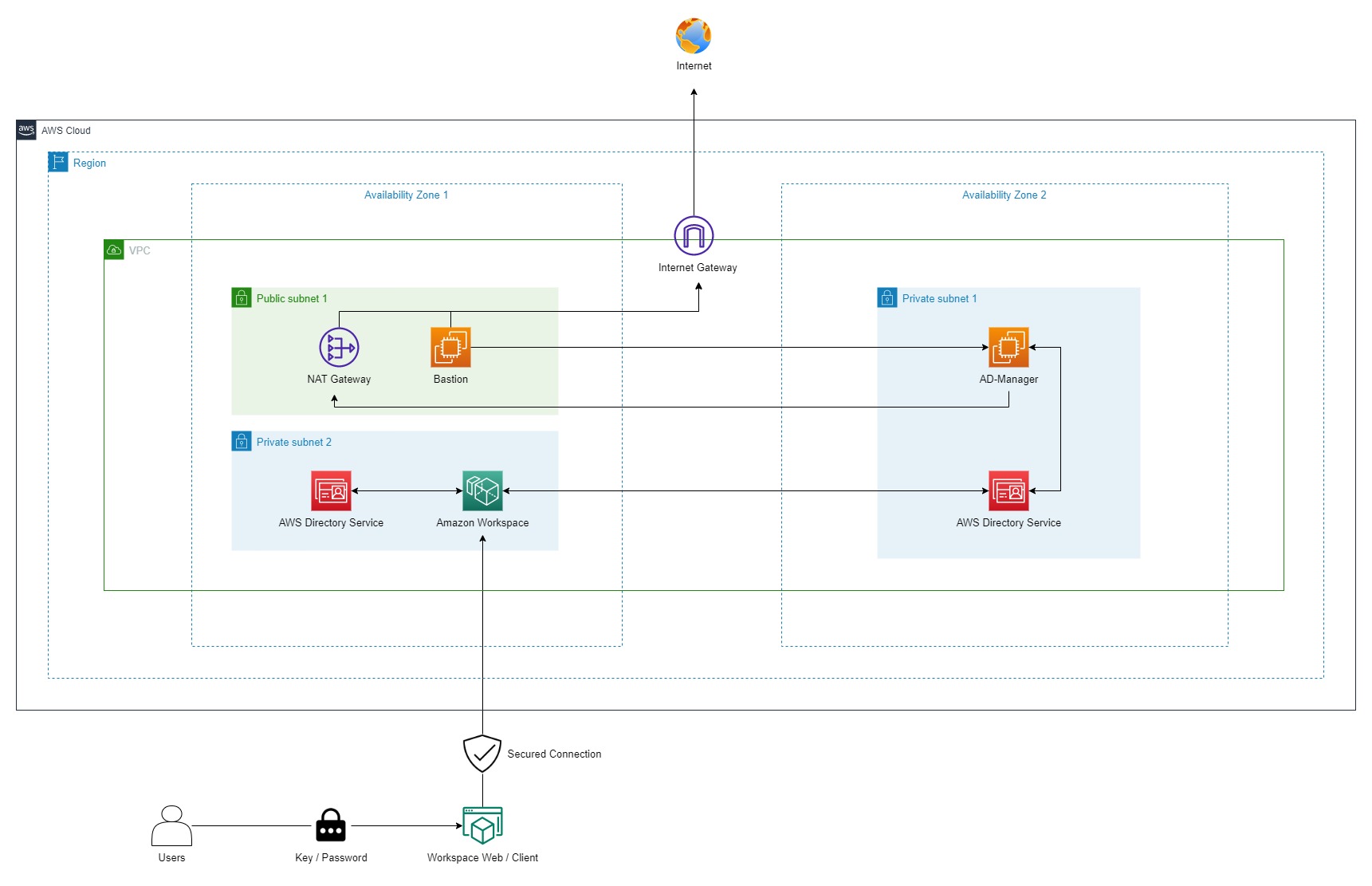
- 1 VPC
- 2 Private Subnets
- 2 Public Subnets
- AWS Directory Service: Deploy an AWS Managed Directory Service
- NAT Gateway
- Internet Gateway
- 1 EC2 - Bastion host
- Public Subnet
- Assigned Public IP: Enabled
- IAM Role: Attached
- Domain: Joined Domain
- Modify hosts file and Computer name: recommended to do but not required
- Modify IP: YES
- 1 EC2 - AD Manager
- Private Subnet
- Assigned Public IP: Disabled
- IAM Role: Attached
- Domain: Joined Domain
- Modify hosts file and Computer name: recommended to do but not required
- Modify IP: YES
Refer to the architect diagram bellow to double check your preparation for the lab
Quick deployment with AWS CloudFormation
If you do not want to create every resource above manually, use the CloudFormation template below. The template provisions the entire Preparation section so that you can jump straight to 3.1 - Prepare To Deploy Amazon WorkSpaces.
Download the template: workshop-prerequisites.yaml
Parameters to fill in
| Parameter | Description |
|---|---|
AvailabilityZone1 / AvailabilityZone2 | 2 different AZs, must be AZs that support Amazon WorkSpaces (for example us-east-1a and us-east-1c) |
AllowedRdpCidr | Your own public IP in CIDR form ending with /32. Get your IP at checkip.amazonaws.com |
KeyName | Key pair used to decrypt the Administrator password for the first RDP session |
DirectoryAdminPassword | Password for the domain Admin account, must satisfy complexity rules |
DirectoryName / DirectoryShortName | Domain name, defaults to corp.example.com / CORP |
BastionInstanceType | Instance type for the Bastion host, defaults to t3.medium |
AdManagerInstanceType | Instance type for the AD-Manager, defaults to t3.large |
Amazon WorkSpaces is not available in every AZ of a Region. If you pick an unsupported AZ, the directory registration step in section 3.1 will fail. You should create the stack in the us-east-1, us-west-2 or ap-southeast-1 Region.
For AllowedRdpCidr, open checkip.amazonaws.com to get your real public IP and append /32. Do not paste example IPs such as 203.0.113.x — that range belongs to RFC 5737, it is reserved for documentation only and belongs to nobody, so the Security Group will block everything and you will not be able to RDP into the Bastion host. Your ISP public IP can also change, so if RDP suddenly stops working, check your current IP and update the inbound rule.
Deploy from the AWS Management Console
Sign in to the AWS Management Console and select the Region you want to work in
Search for and open CloudFormation => Create stack => With new resources (standard)
Choose Upload a template file => select the
workshop-prerequisites.yamlfile you just downloaded => Next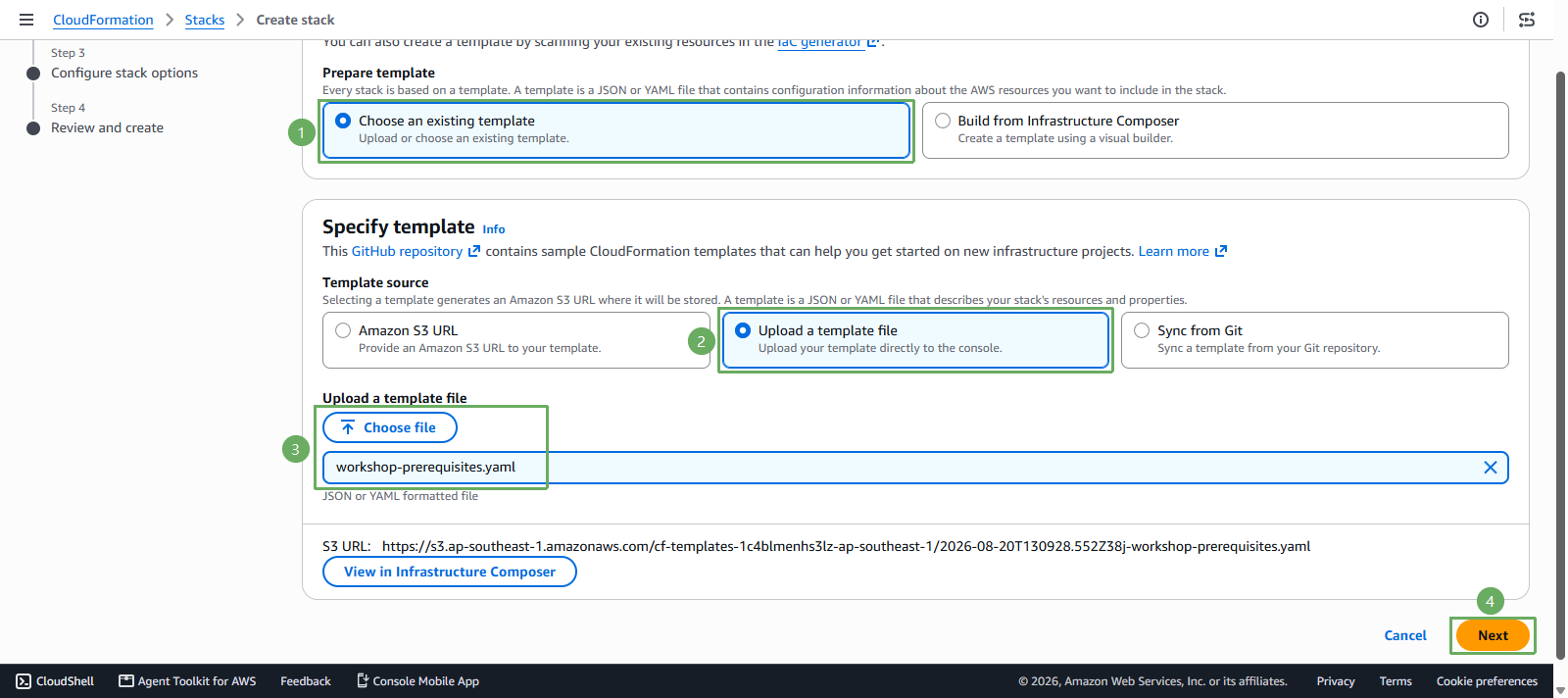
Enter a Stack name, for example
workspaces-workshop, then fill in the parameters from the table above => Next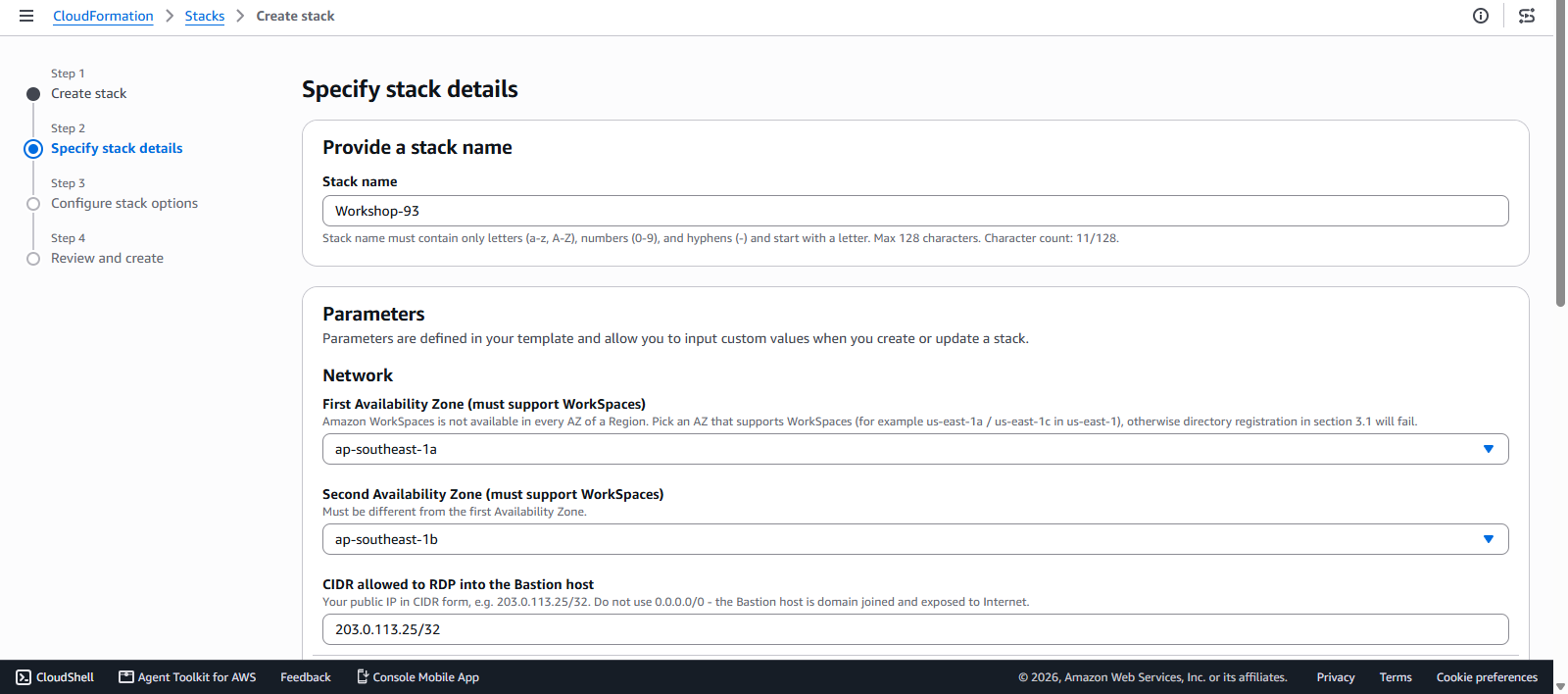
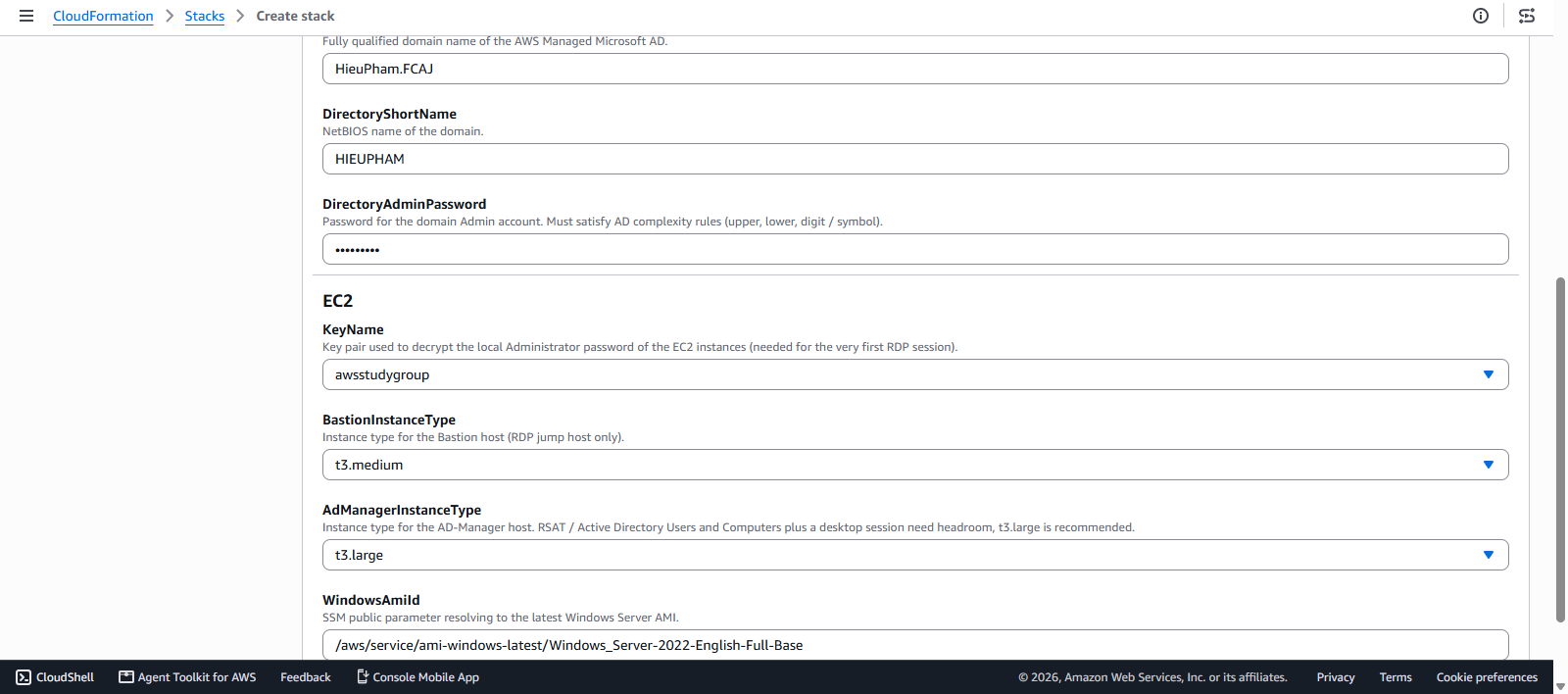
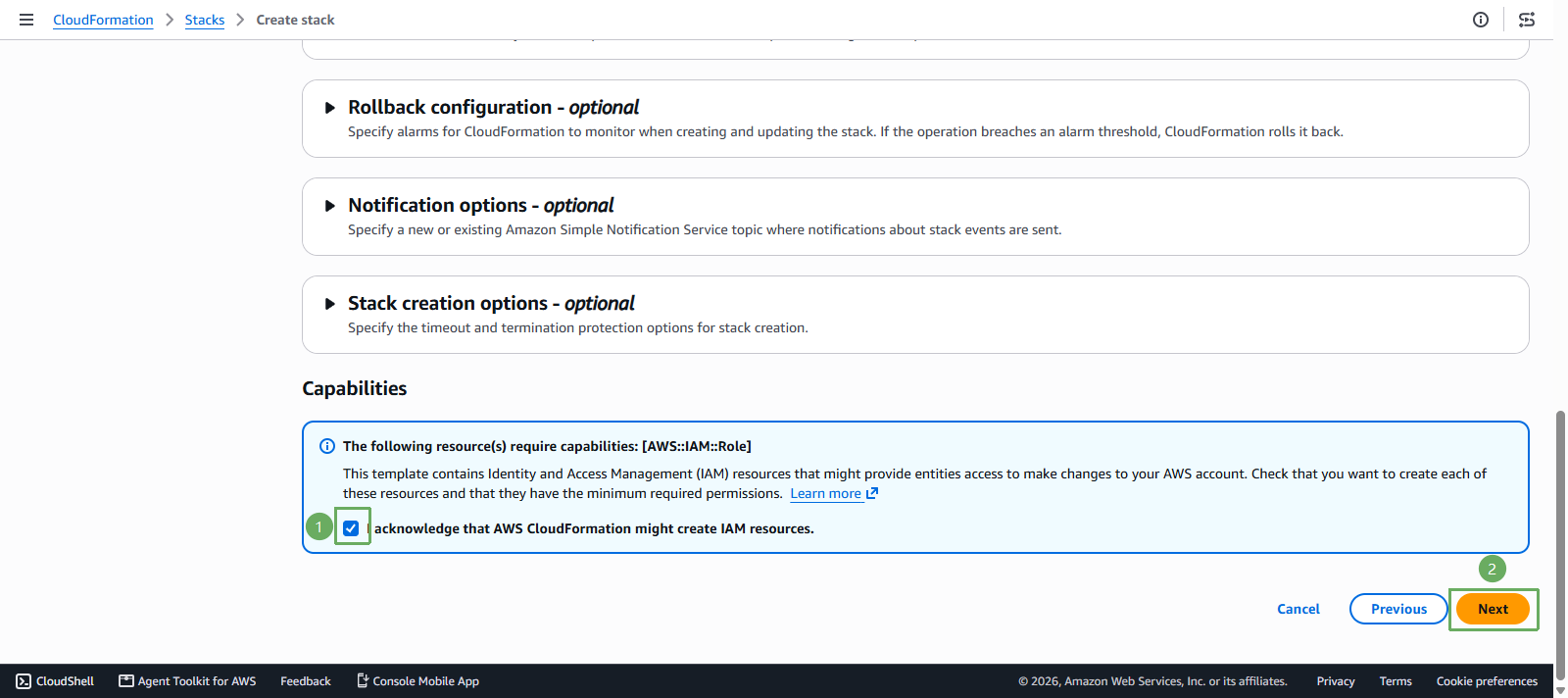
On the Configure stack options page, select I acknowledge that AWS CloudFormation might create IAM resources => Next
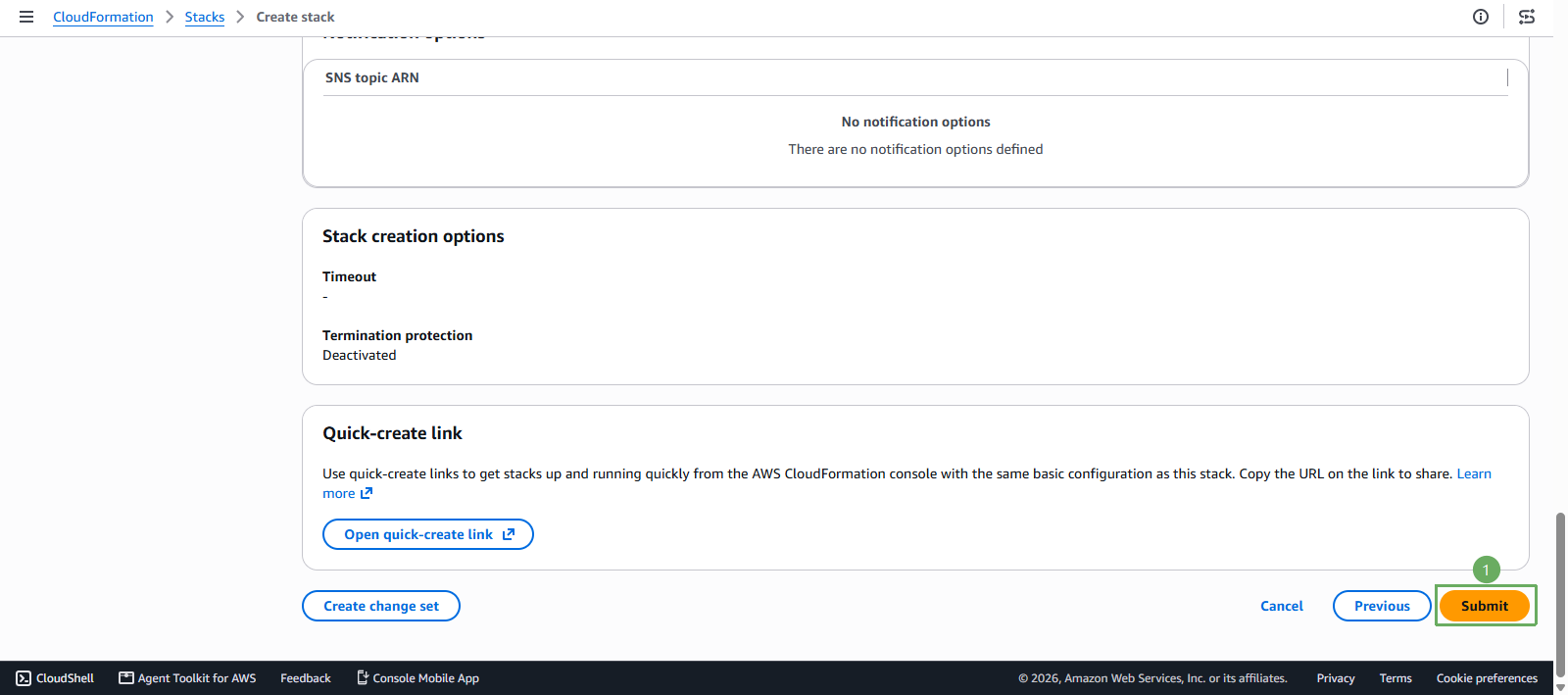
On the Review page choose Submit
After the stack completes
AWS Managed Microsoft AD needs about 20 - 25 minutes to initialize, so the total stack creation time is usually around 25 - 30 minutes. When the stack reaches CREATE_COMPLETE, open the Outputs tab to collect the information needed for section 3:
| Output | Used for |
|---|---|
DirectoryId | The directory to register with Amazon WorkSpaces in step 3.1 |
WorkSpacesSubnetIds | The 2 Private Subnets to select when registering the directory |
BastionPublicIp | RDP into the bastion, sign in as CORP\Admin |
AdManagerPrivateIp | From the bastion, RDP here to use Active Directory Users and Computers |
DirectoryDnsAddresses | The 2 DNS IPs of the Domain Controllers |