Access WorkSpaces - Browser
Get the Registration Code
- The Registration Code is the code that tells the browser or the client which directory your WorkSpace belongs to. You can get it from one of these places:
- In the invitation email sent to the user
- WorkSpaces console => Directories => the Registration Code column of the directory
- WorkSpaces console => WorkSpaces => select the WorkSpace => View Details => the Summary section
- The code looks like
wssin+XXXXXX, the prefix changes per Region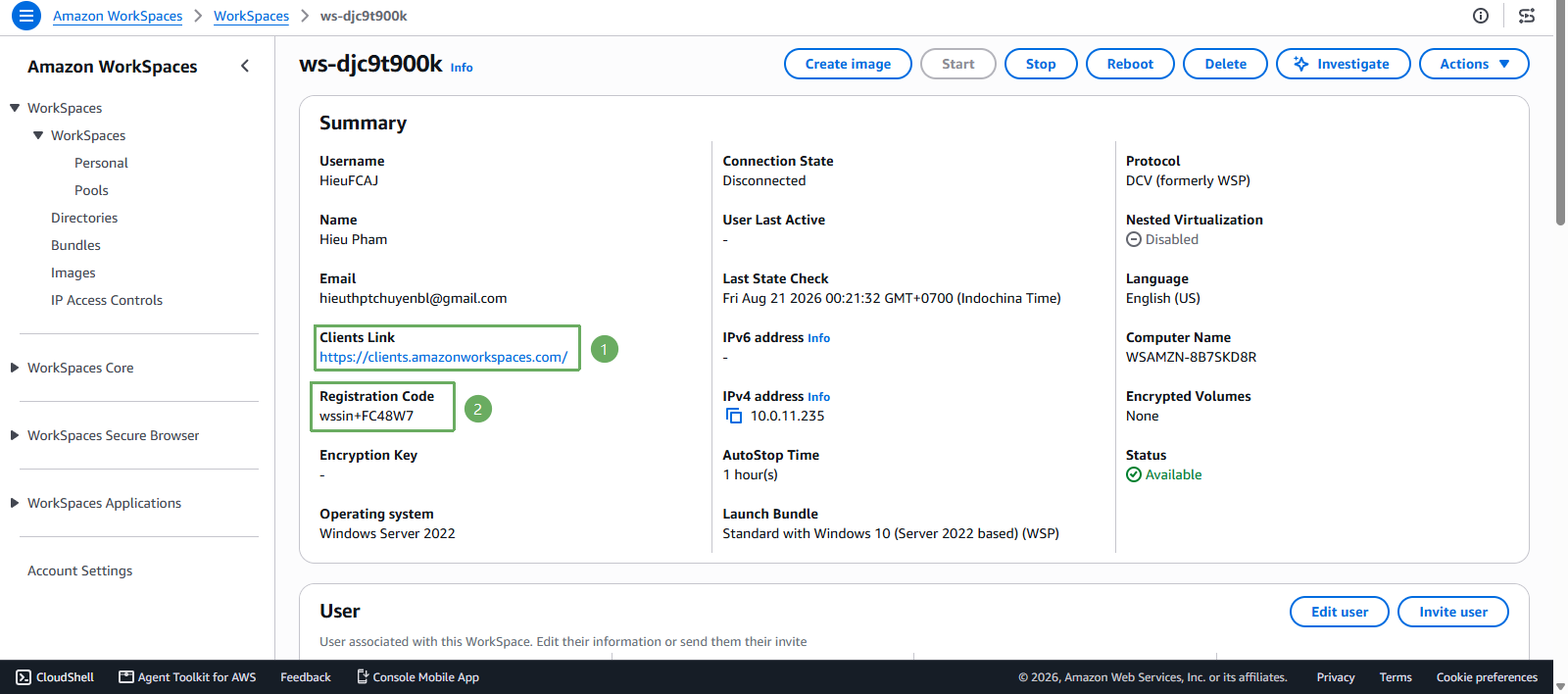
Open the Web Access page
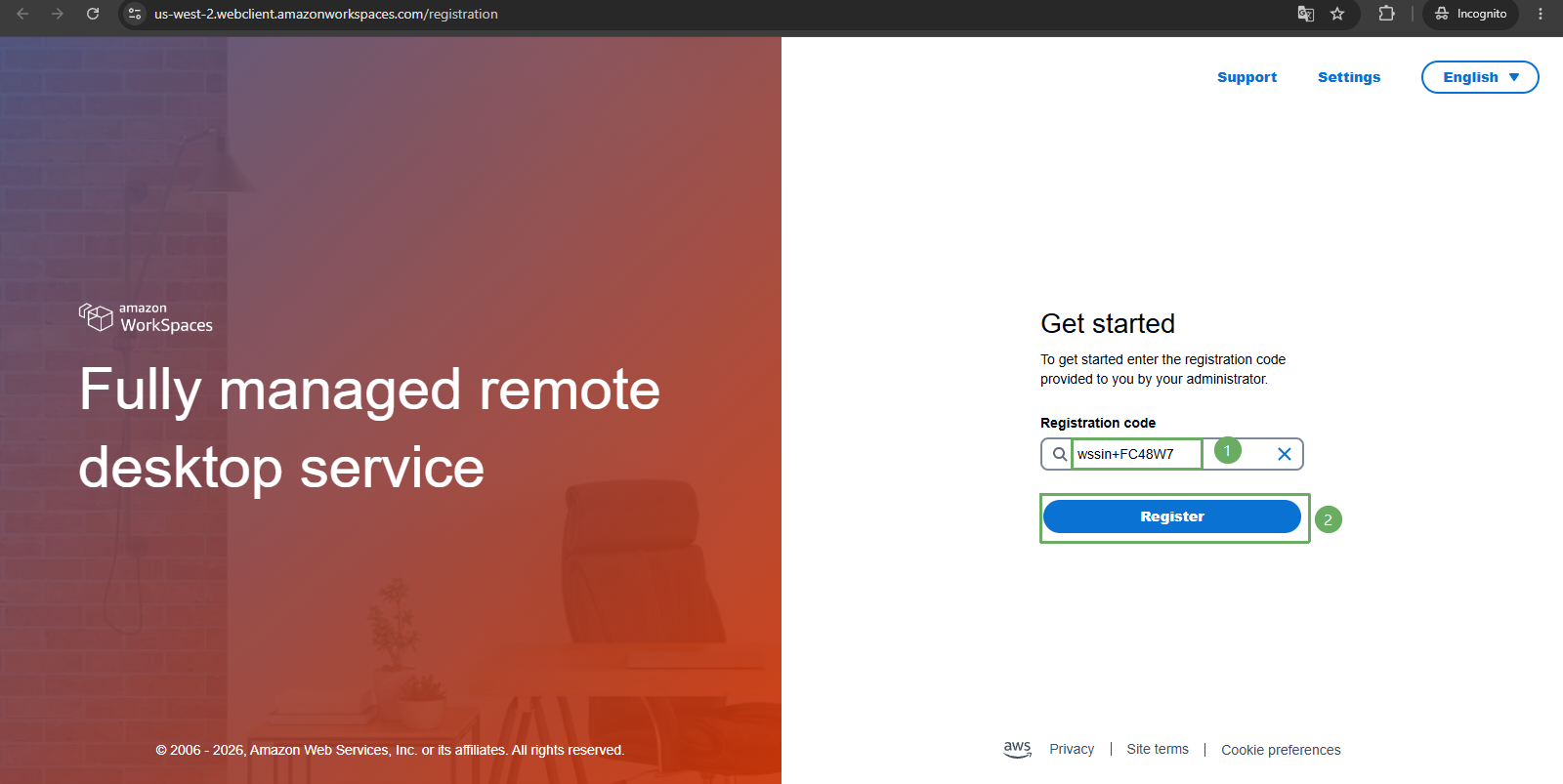
- Go to clients.amazonworkspaces.com and choose Web Access
- It is recommended to open it in a private / incognito browser window to avoid conflicts with your current AWS sign-in session
- It is recommended to open it in a private / incognito browser window to avoid conflicts with your current AWS sign-in session
If your WorkSpace uses the DCV / WSP protocol as instructed in section 3.2, use a Chromium based browser such as Google Chrome or Microsoft Edge. Firefox only supports Web Access for PCoIP WorkSpaces. In addition, as of 11/07/2025 AWS no longer opens PCoIP Web Access to new customers, so DCV is the only path for newly created environments.
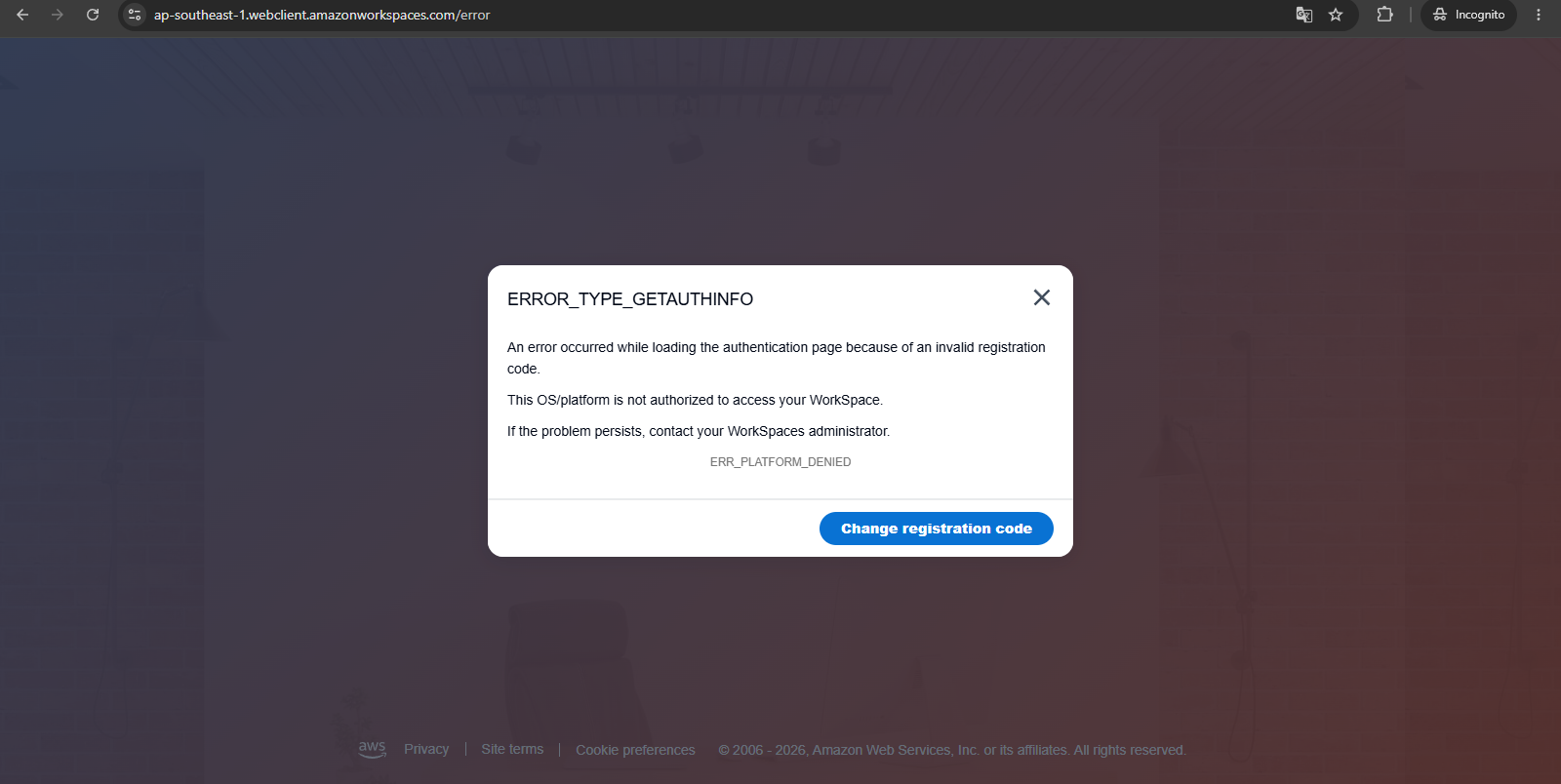
- Enter the Registration Code. On the first attempt you will get an error - this error is expected, because Web Access is denied at the directory level by default. We will enable it in the next step.
Enable Web Access for the Directory
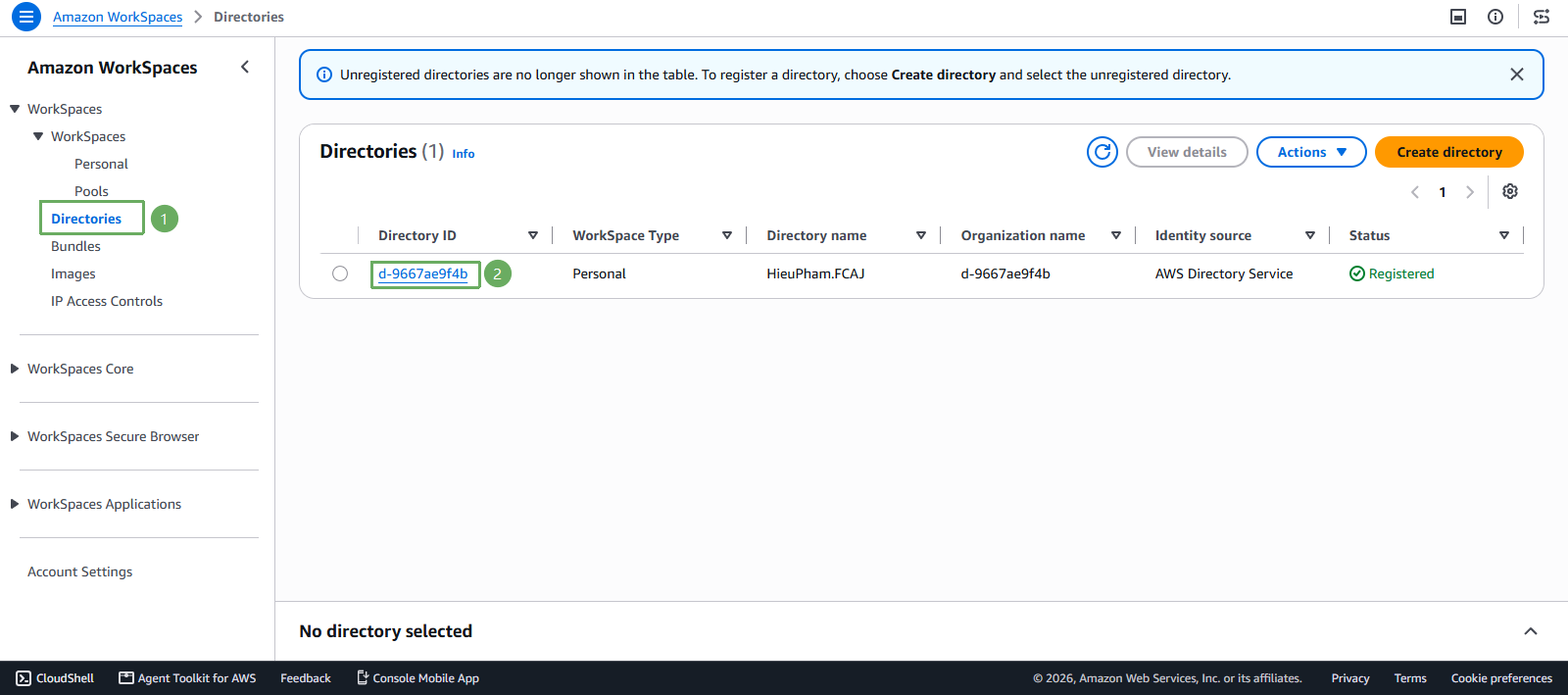
- Open the WorkSpaces console => Directories
- In the Directory ID column, click the ID of the directory to open the Directory Details page
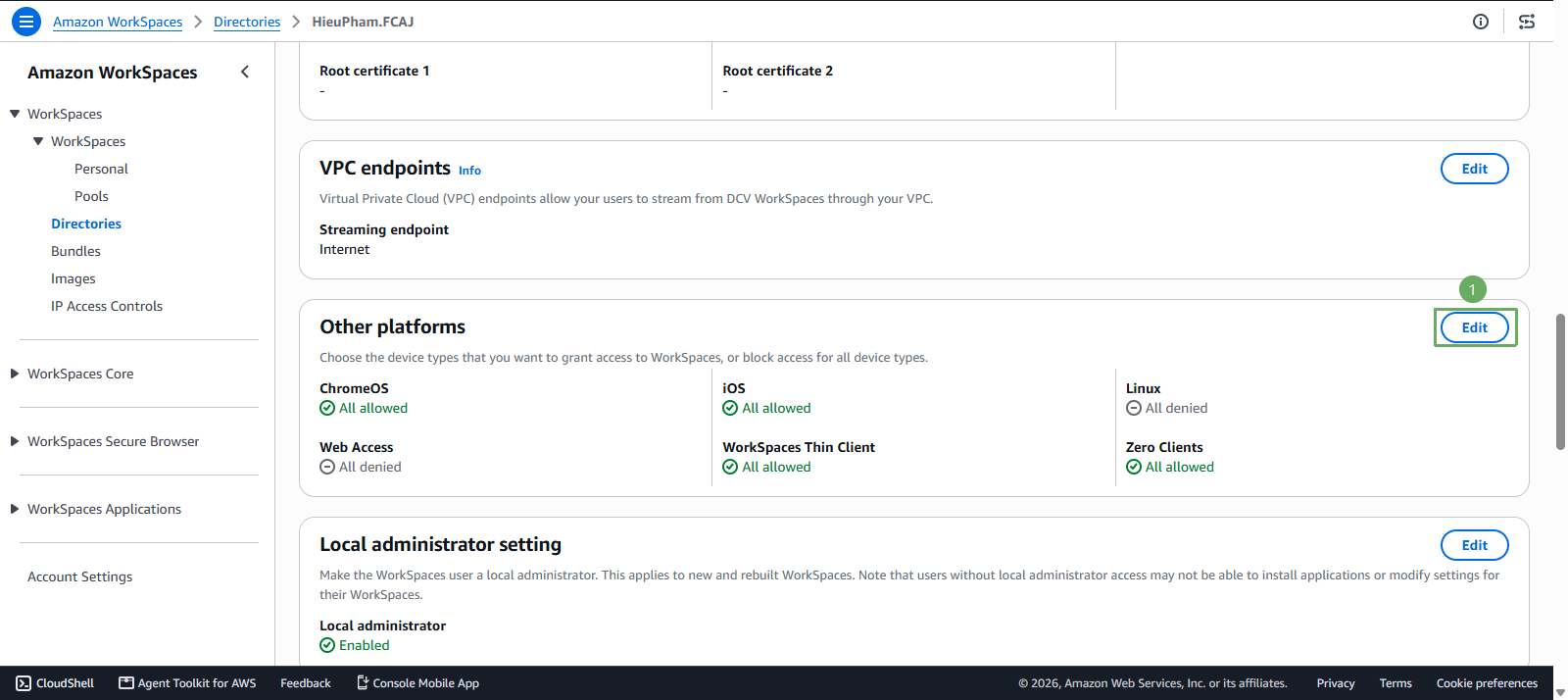
- Scroll down to the Other platforms section => click Edit
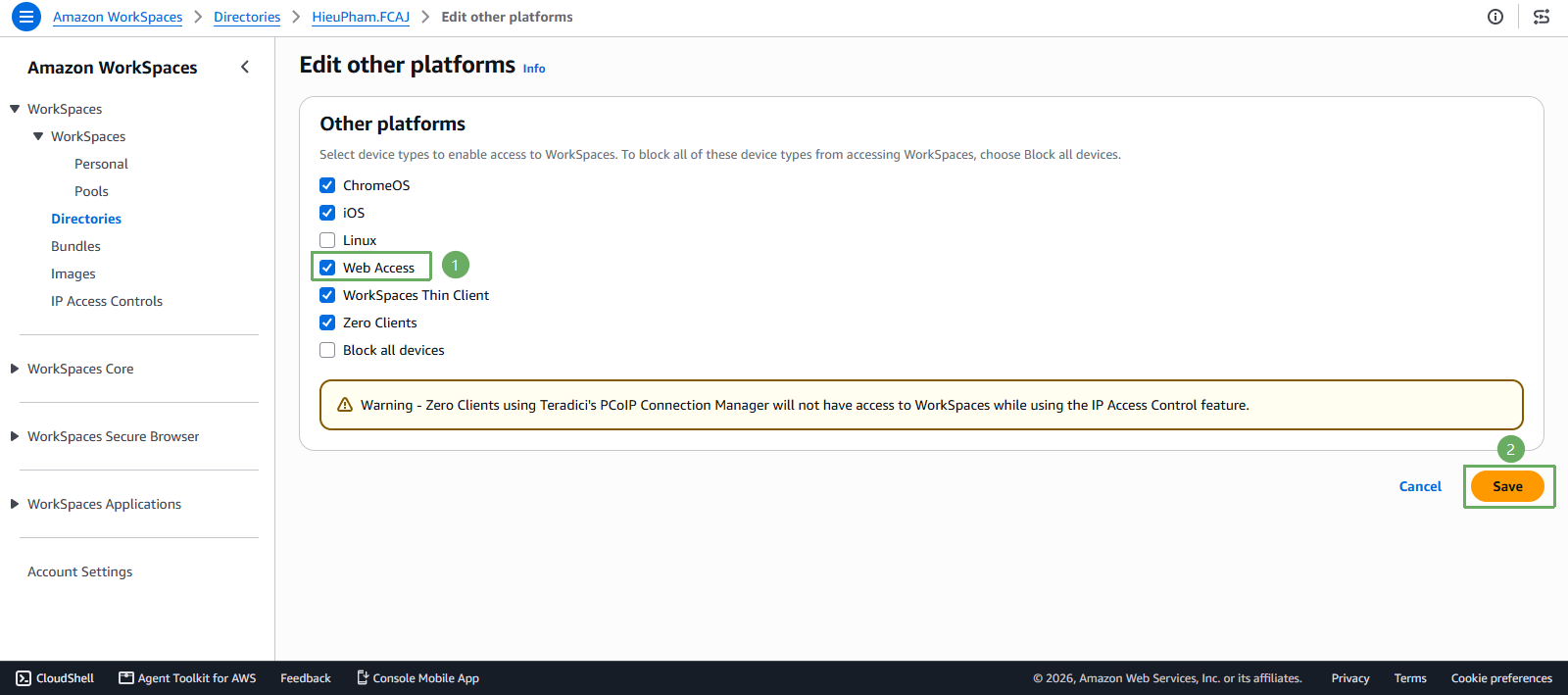
- Select Web Access => click Save
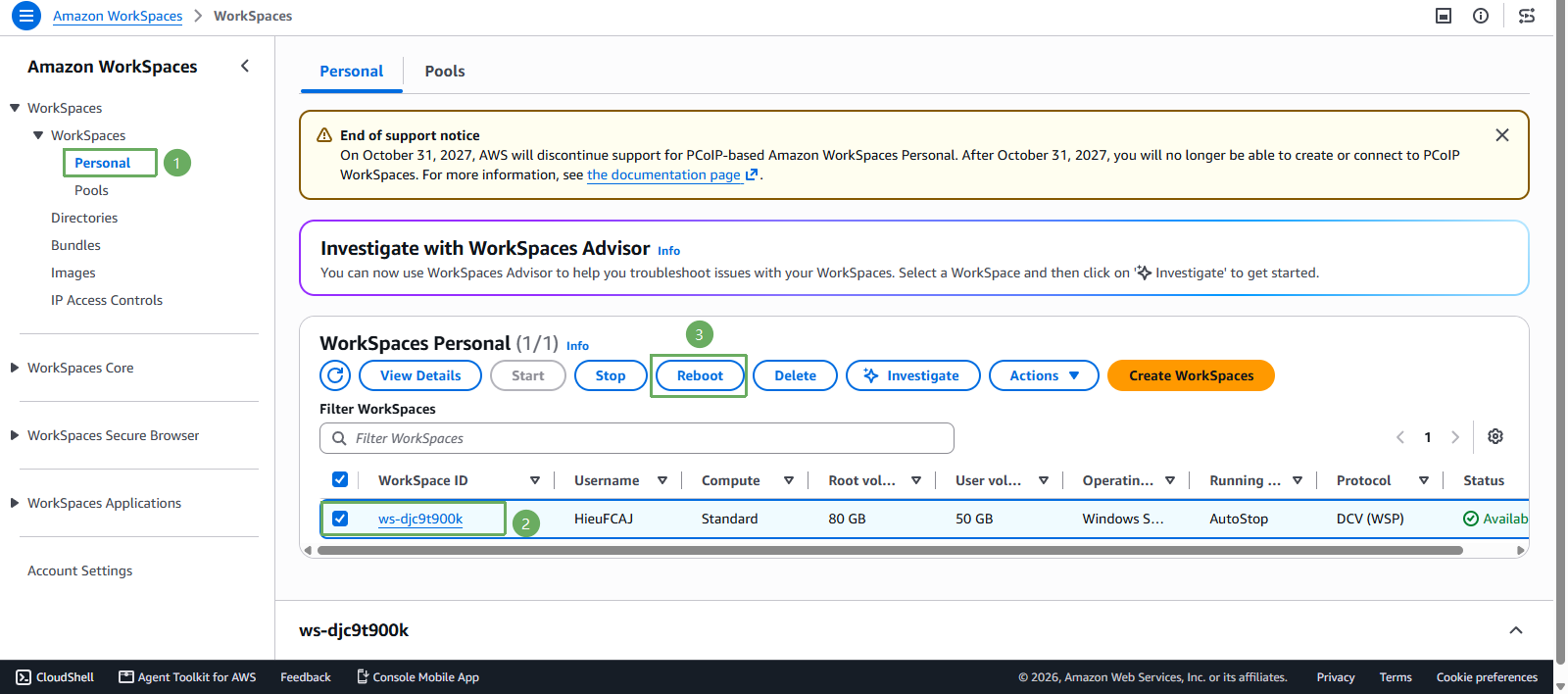
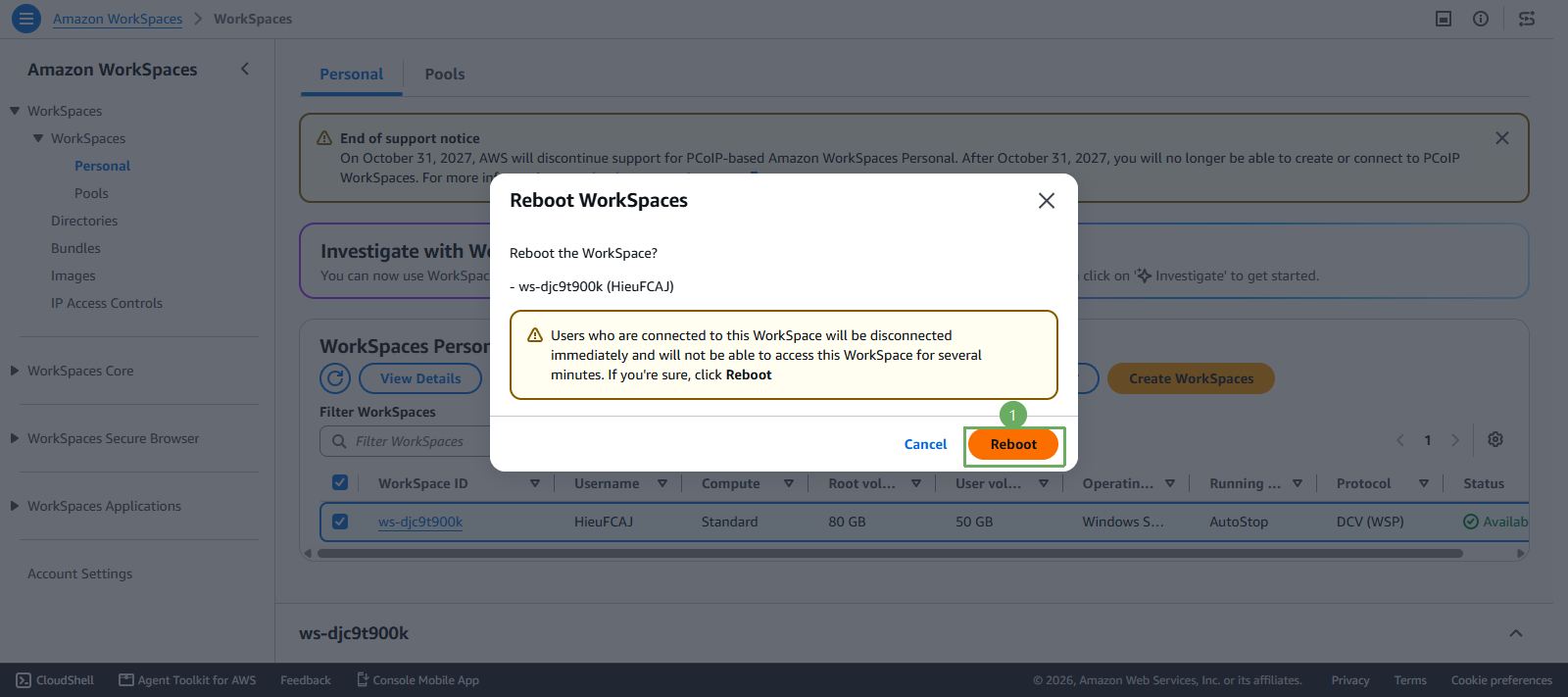
After enabling Web Access, you must reboot the WorkSpace for the change to apply: WorkSpaces console => WorkSpaces => select the WorkSpace => Actions => Reboot WorkSpaces. If you skip this step, the Web Access page still returns the same error.
Sign in and explore
- Go back to the Web Access page and enter the Registration Code again. This time the error is fixed. Enter the username and password of the AD account
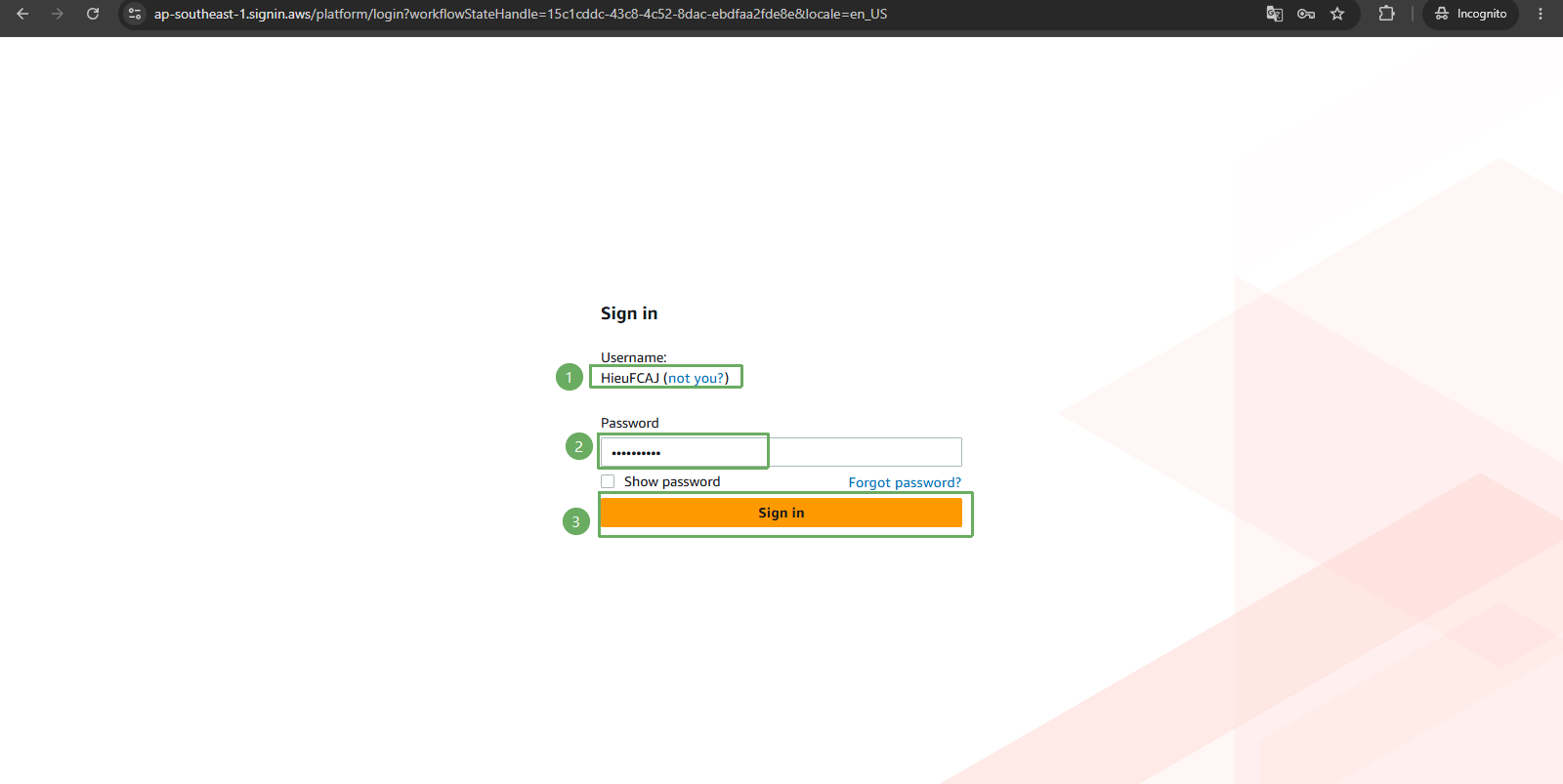
- This is Amazon WorkSpaces
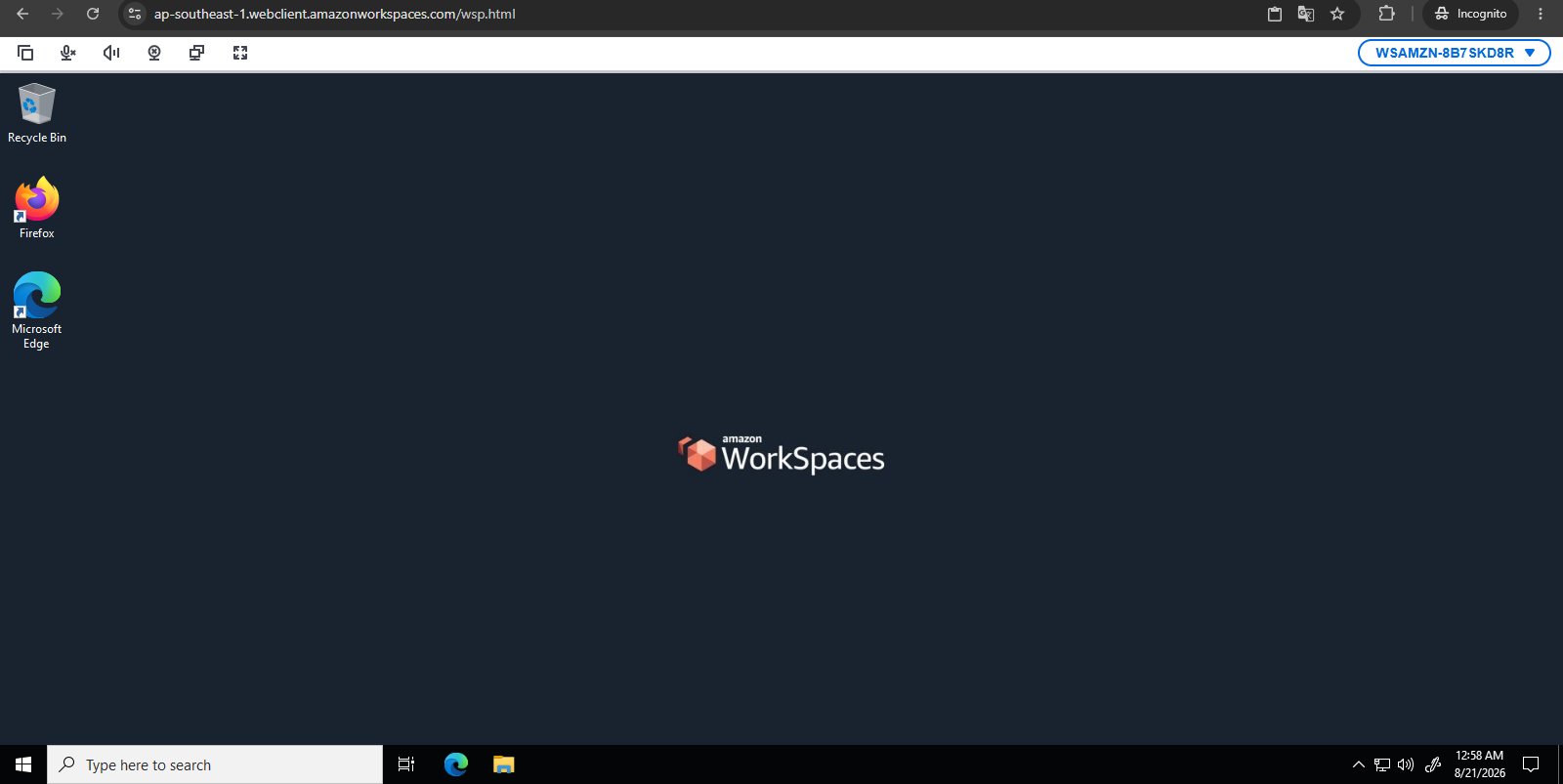
- Internet access on the WorkSpaces
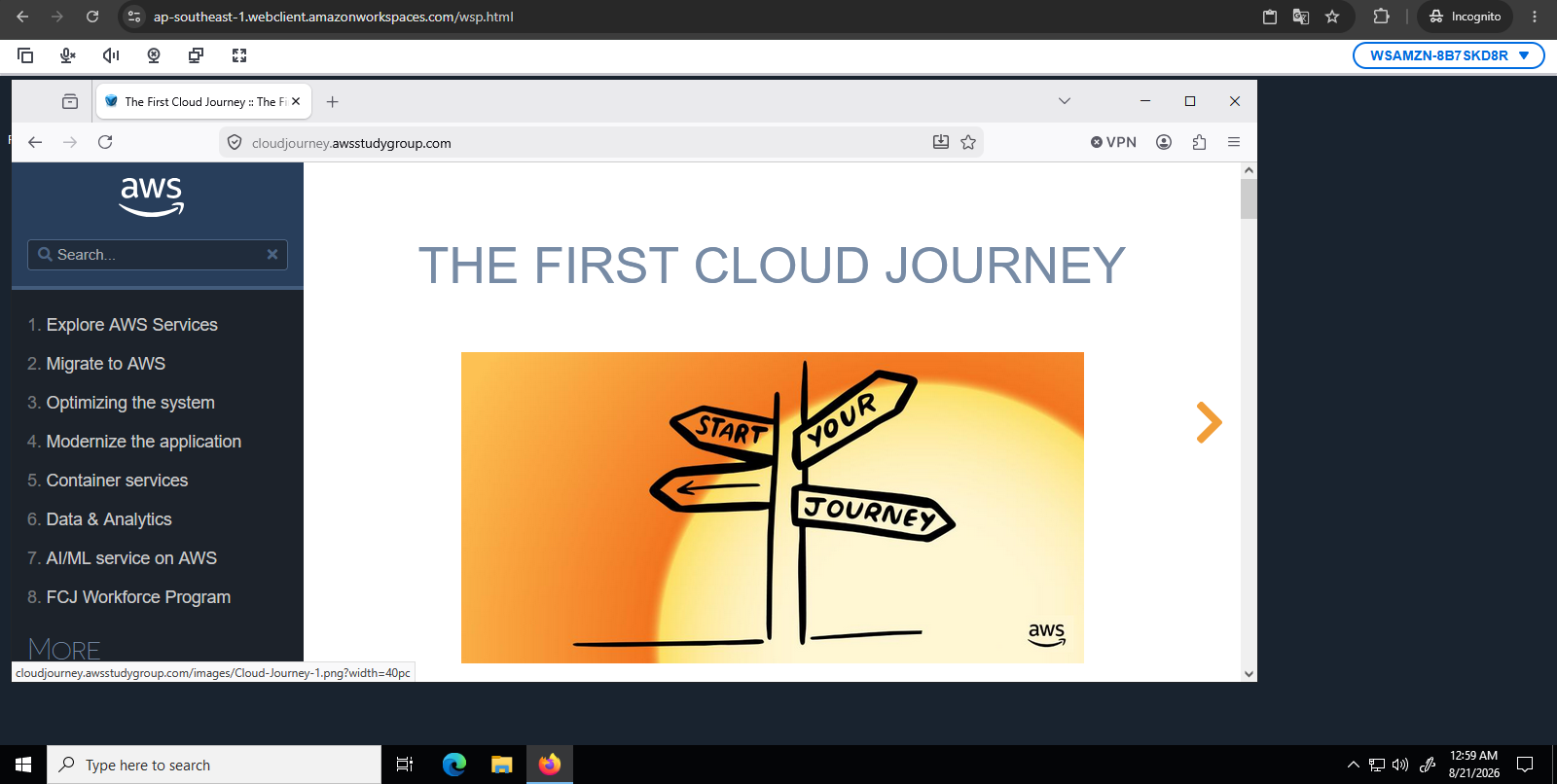
- File Explorer on the WorkSpaces
If you chose the Standard bundle with the Free tier eligible label in section 3.2, the WorkSpace only ships with Mozilla Firefox and does not include Microsoft Office. The Office suite is only present if you choose a Plus bundle, or if you install it later with the Manage applications feature.
If you can sign in but get a black screen or very long sign-in times, the AWS documentation also has a step for configuring Group Policy and Security Policy for the logon screen, performed on the EC2 AD-Manager with gpmc.msc. Details at Enable and configure WorkSpaces Web Access.